
ResidentialBusiness
Administrators
-
Joined
-
Last visited
Everything posted by ResidentialBusiness
-
 James Chappel is an associate professor of history at Duke University and a senior fellow at the Duke Aging Center. He is the author of Catholic Modern, and his writing has appeared in The New York Times, The Nation, and The New Republic. What’s the big idea? Aging in America is becoming one of our country’s most important policy arenas. With more old citizens than young ones, the relevance of elder members in society has never been greater. Despite great progress in the quality of old age over the past century, there is much need for growth in terms of practical policy and cultural perceptions. Below, Chappel shares five key insights from his new book, Golden Years: How Americans Invented and Reinvented Old Age. Listen to the audio version—read by Chappel himself—in the Next Big Idea App. 1. Population aging is one of the biggest historical transformations of our time. We think about population aging as an issue for medicine and finance, but we don’t usually think about it historically. From the broadest perspective, population aging is one of the biggest changes that has happened to American society in the past century. Many people think of politics, iPhones, or AI when considering dramatic societal change, but those things matter less than major demographic changes. Human life is not what it was a century ago—it’s twice as long!—and that deserves much more attention. 2. We’ve only been seriously contemplating population aging for a century. Most of the major things we deal with as a society (education, politics, health, war, gender) are topics we have publicly debated for centuries. We have reflected long and hard on many subjects, but no one really paid attention to population aging until about the 1930s. Even people thinking very hard about social reform and progress, like Karl Marx, weren’t thinking about aging at all. So, aging is an issue that has a pretty short history. What to do with old age and how to pay for old age are areas of reflection with a lot of space open for creativity. It’s an exciting, vibrant, fresh avenue for collective contemplation. 3. There have been many different approaches to aging. We often think of aging as something nonideological. Education is ideological, and the military is ideological, so we have robust public debate about the meaning of these things. But old age is kind of like, well, you get Social Security and Medicare, and we don’t want to think about it too much beyond that. Old age is in a moment of ideological stasis. But for most of the past century, there’s been much debate about what it means to age well: socially, politically, and justly. There has been socialist aging, conservative aging, green or eco-conscious aging, etc. One tradition I look at is critical race theory. From that perspective, the history of aging looks quite different. There actually was a robust tradition of Black thought about aging. A lot of inspiring Black leaders said, essentially, that racism and prejudice follow Americans through the whole course of life. Older Black Americans have all kinds of negative outcomes, and Black activists suggested specific reforms to bring the insights of the Civil Rights Movement into old age politics and policy. We need to reinvigorate and repoliticize old age. We should remember how political and divisive it was (and therefore, how exciting it was) to debate old age just a few decades ago. 4. 20th-century solutions to old age are very good. Historians are often quite down on American history. They tend to focus on the persistence of inequality, violence, or disenfranchisement. But when it comes to old age, the situation is much better than it was a century ago. A century ago, older people often lived in squalor, in one-room shacks with dirt floors. There were only a few elders because public health was so bad. Now, older people are quite economically privileged, and they have access to the best poverty reduction program in the country, which is social security. They’re the only age bracket with something like socialized medicine through Medicare. There’s a lot to be grateful for as aging Americans, but there’s also a lot left to be done. There are failures in old-age policy, especially for people over 80, the old old. Issues of frailty, nursing home care, and things like that. Many American middle-aged couples, especially women, are financially or emotionally devastated by caring for older relatives. This is a result of a policy decision that could have been approached differently. There were approaches on the table that would have lessened the burden on unpaid caretakers, and it is not too late. When we think historically about old age, it’s important that we tell an optimistic story. I’m excited to get old. There will be way more social programs for me when I’m 65 than I have available to me now. But there’s also room for growth, especially in dealing with policy for the old old. Nursing homes and extended care will be the most important policy arenas in the near future. 5. Getting old is an adventure. Old age in America can be very good. It can be very fun. You have access to so much when it comes to opportunities for leisure and health. But what I mean by the adventure of old age is a bit different. As Americans, we tend to believe that we make our biggest contributions as citizens when we’re young, that politics is a young person’s game: green energy, Black Lives Matter, and other movements are for younger people, and old people can step back. I think that is absolutely not true. That is a completely outdated way to think about American politics. I think the age of youth has eclipsed. There are more older people in America than younger ones. The decisions we make about how to age and think about old age policy will matter now more than ever. Being provocative, I might even say that decisions about aging are going to matter more than decisions about youth because I think the age of the youth is over. There’s been a major demographic transition in this country and many others. As we age, we should not think of ourselves as becoming less relevant. We should think of ourselves as becoming more relevant. This article originally appeared in Next Big Idea Club magazine and is reprinted with permission. View the full article
-
His attack on government is not ideologically coherent but it can be traced to an engineering mindset that values radical ideasView the full article
-
Hedge fund boss speaks ahead of right-leaning Arc conference in London next week View the full article
-
Reform says claims brought by former workers — who say they were dismissed after the election — are ‘fraudulent’ View the full article
-
The more information there is in the world, the more people crave guidanceView the full article
-
Caught between an aggressive Russia and a disengaging America, the continent’s western democracies must now rearm — or pay the priceView the full article
-
This post was written by Alison Green and published on Ask a Manager. the “terrified of humans” pair … curled up in my lap This comment section is open for any non-work-related discussion you’d like to have with other readers, by popular demand. Here are the rules for the weekend posts. Book recommendation of the week: Piglet, by Lottie Hazell. After her fiance confesses a betrayal two weeks before their wedding, a woman becomes inexplicably ravenous. (Amazon, Bookshop) * I earn a commission if you use those links. View the full article
-
ASUS has announced the availability of the ZenScreen Duo OLED MQ149CD, a portable monitor featuring dual 14-inch OLED screens, offering users expanded screen real estate in a compact design. With 1920 x 1200 resolution and a 16:10 aspect ratio, the device provides an onscreen area equivalent to a 20-inch monitor. The OLED panels deliver vibrant colors, deep blacks, and exceptional clarity, ensuring an optimal visual experience. Compact, Innovative Design The ZenScreen Duo OLED MQ149CD weighs 1.07 kg and folds into a 14-inch form factor, making it highly portable. When unfolded, its dual-screen design supports various display modes, including Split, Extended, Independent, and Mirror modes, catering to different productivity needs. The 360° hinge and integrated fold-out kickstand allow for flexible workstation setups, including Tent mode, which enables back-to-back presentations. Exceptional Visual Performance The OLED panels provide 100% DCI-P3 gamut and Delta E <2 color accuracy, ensuring cinema-grade visuals suitable for both professional and entertainment use. With HDR technology and a 100,000:1 contrast ratio, the monitor delivers high perceptual brightness and DisplayHDR True Black 400 certification, enhancing clarity and detail even in dark environments. Advanced Multitasking and Customization The ZenScreen Duo OLED MQ149CD introduces multiple display modes tailored to varied workflow requirements: Extend Mode: Enables seamless multitasking across both screens. Split Mode: Displays content in a continuous waterfall layout, ideal for coding or document review. Independent Mode: Assigns each screen to different sources, allowing multitasking across multiple devices. Mirror Mode: Duplicates content across both screens for effortless sharing. Additionally, ASUS DisplayWidget Center software enables auto rotation, as well as quick adjustments to brightness, contrast, and color temperature for a personalized viewing experience. Seamless Connectivity The MQ149CD simplifies connectivity with a single USB-C connection, allowing for both power and video signal transmission. It includes two USB-C ports and a Mini HDMI port, ensuring compatibility with a wide range of devices. Ergonomic and Eco-Friendly Features Designed for adaptable workspaces, the monitor features a built-in ¼-inch screw thread socket, allowing for tripod mounting and adjustable viewing angles. The device is ENERGY STAR®-certified, supporting sustainable practices with FSC Mix-certified packaging that minimizes shipping volume for improved efficiency. Availability The ASUS ZenScreen Duo OLED MQ149CD is now available for purchase. With its portable dual-screen design, high-quality OLED visuals, and advanced connectivity, ASUS aims to provide a versatile, productivity-enhancing display solution for professionals and mobile users alike. Image: Asus This article, "ASUS Unveils ZenScreen Duo OLED MQ149CD, a Dual-Screen Portable Monitor for Versatile Workspaces" was first published on Small Business Trends View the full article
-
ASUS has announced the availability of the ZenScreen Duo OLED MQ149CD, a portable monitor featuring dual 14-inch OLED screens, offering users expanded screen real estate in a compact design. With 1920 x 1200 resolution and a 16:10 aspect ratio, the device provides an onscreen area equivalent to a 20-inch monitor. The OLED panels deliver vibrant colors, deep blacks, and exceptional clarity, ensuring an optimal visual experience. Compact, Innovative Design The ZenScreen Duo OLED MQ149CD weighs 1.07 kg and folds into a 14-inch form factor, making it highly portable. When unfolded, its dual-screen design supports various display modes, including Split, Extended, Independent, and Mirror modes, catering to different productivity needs. The 360° hinge and integrated fold-out kickstand allow for flexible workstation setups, including Tent mode, which enables back-to-back presentations. Exceptional Visual Performance The OLED panels provide 100% DCI-P3 gamut and Delta E <2 color accuracy, ensuring cinema-grade visuals suitable for both professional and entertainment use. With HDR technology and a 100,000:1 contrast ratio, the monitor delivers high perceptual brightness and DisplayHDR True Black 400 certification, enhancing clarity and detail even in dark environments. Advanced Multitasking and Customization The ZenScreen Duo OLED MQ149CD introduces multiple display modes tailored to varied workflow requirements: Extend Mode: Enables seamless multitasking across both screens. Split Mode: Displays content in a continuous waterfall layout, ideal for coding or document review. Independent Mode: Assigns each screen to different sources, allowing multitasking across multiple devices. Mirror Mode: Duplicates content across both screens for effortless sharing. Additionally, ASUS DisplayWidget Center software enables auto rotation, as well as quick adjustments to brightness, contrast, and color temperature for a personalized viewing experience. Seamless Connectivity The MQ149CD simplifies connectivity with a single USB-C connection, allowing for both power and video signal transmission. It includes two USB-C ports and a Mini HDMI port, ensuring compatibility with a wide range of devices. Ergonomic and Eco-Friendly Features Designed for adaptable workspaces, the monitor features a built-in ¼-inch screw thread socket, allowing for tripod mounting and adjustable viewing angles. The device is ENERGY STAR®-certified, supporting sustainable practices with FSC Mix-certified packaging that minimizes shipping volume for improved efficiency. Availability The ASUS ZenScreen Duo OLED MQ149CD is now available for purchase. With its portable dual-screen design, high-quality OLED visuals, and advanced connectivity, ASUS aims to provide a versatile, productivity-enhancing display solution for professionals and mobile users alike. Image: Asus This article, "ASUS Unveils ZenScreen Duo OLED MQ149CD, a Dual-Screen Portable Monitor for Versatile Workspaces" was first published on Small Business Trends View the full article
-
Decision to offload the business comes as private equity groups look to capitalise on a flurry of takeover activityView the full article
-
TechSmith Corporation has released the latest versions of Snagit and Camtasia, integrating AI and Screentelligence-powered features designed to enhance content creation workflows. The 2025 updates focus on improving efficiency for users creating training materials, documentation, and workplace communications, marking the final annual release before TechSmith transitions to a continuous delivery model through its subscription offerings. AI and Screentelligence Transform Content Creation Snagit 2025 and Camtasia 2025 leverage AI to automate and refine editing processes, reducing effort and enhancing professional polish. Snagit simplifies step-by-step guide creation and protects sensitive information, while Camtasia introduces AI avatars and advanced cursor effects for clearer instructional videos. “We’ve enhanced Snagit and Camtasia with new AI and Screentelligence features to make it faster and easier for users to achieve their creative goals,” said Tony Lambert, CTO of TechSmith. “User feedback heavily inspired these improvements, helping us simplify and streamline our most popular workflows and features so users can create content with less effort and improve visual communication within teams and organizations.” Snagit 2025: Streamlining Visual Content Creation Snagit’s latest version introduces AI-assisted features aimed at optimizing workflow efficiency and enhancing content quality. New features include: Step Capture: Automatically organizes screenshots into structured guides for process documentation. Smart Redact: Detects and removes sensitive information like phone numbers and mailing addresses. Background Noise Removal: Filters out unwanted noise in user-generated videos. Customizable Share Link (Enterprise exclusive): Enables seamless integration with corporate platforms like OneDrive and Google Drive. Virtual Background Capabilities (Mac exclusive): Allows blurring or changing of webcam backgrounds during recordings. Corner Rounding: Provides a modern aesthetic for screen captures. Instant Asset Access: One-click retrieval of Snagit’s Asset Library. Camtasia 2025: Advancing Professional Video Creation Camtasia 2025 enhances video editing with AI-driven improvements, delivering greater precision and engagement. Key updates include: Background Noise Removal: Instantly filters out noise for clearer audio. Dynamic Caption Editing: Allows manual adjustments to automated captions. Smarter Cursor Movements: Introduces motion blur and enhanced directionality to improve clarity. Kinetic Cursor: Directs viewer attention by dynamically pointing toward the next interaction. Cursor Elevation: Ensures the cursor remains visible above all annotations and effects. AI Avatars (Camtasia Pro exclusive): Enables the use of human avatars to deliver localized training content. Subscription Transition and Availability With this release, TechSmith shifts from an annual release model to continuous updates through subscription plans. Pricing and licensing details for Snagit 2025 can be found at TechSmith Snagit Store, while information on Camtasia 2025 Essentials, Create, and Pro plans is available at TechSmith Camtasia Store. This article, "Snagit and Camtasia 2025 Introduce AI-Powered Workflows to Streamline Content Creation" was first published on Small Business Trends View the full article
-
TechSmith Corporation has released the latest versions of Snagit and Camtasia, integrating AI and Screentelligence-powered features designed to enhance content creation workflows. The 2025 updates focus on improving efficiency for users creating training materials, documentation, and workplace communications, marking the final annual release before TechSmith transitions to a continuous delivery model through its subscription offerings. AI and Screentelligence Transform Content Creation Snagit 2025 and Camtasia 2025 leverage AI to automate and refine editing processes, reducing effort and enhancing professional polish. Snagit simplifies step-by-step guide creation and protects sensitive information, while Camtasia introduces AI avatars and advanced cursor effects for clearer instructional videos. “We’ve enhanced Snagit and Camtasia with new AI and Screentelligence features to make it faster and easier for users to achieve their creative goals,” said Tony Lambert, CTO of TechSmith. “User feedback heavily inspired these improvements, helping us simplify and streamline our most popular workflows and features so users can create content with less effort and improve visual communication within teams and organizations.” Snagit 2025: Streamlining Visual Content Creation Snagit’s latest version introduces AI-assisted features aimed at optimizing workflow efficiency and enhancing content quality. New features include: Step Capture: Automatically organizes screenshots into structured guides for process documentation. Smart Redact: Detects and removes sensitive information like phone numbers and mailing addresses. Background Noise Removal: Filters out unwanted noise in user-generated videos. Customizable Share Link (Enterprise exclusive): Enables seamless integration with corporate platforms like OneDrive and Google Drive. Virtual Background Capabilities (Mac exclusive): Allows blurring or changing of webcam backgrounds during recordings. Corner Rounding: Provides a modern aesthetic for screen captures. Instant Asset Access: One-click retrieval of Snagit’s Asset Library. Camtasia 2025: Advancing Professional Video Creation Camtasia 2025 enhances video editing with AI-driven improvements, delivering greater precision and engagement. Key updates include: Background Noise Removal: Instantly filters out noise for clearer audio. Dynamic Caption Editing: Allows manual adjustments to automated captions. Smarter Cursor Movements: Introduces motion blur and enhanced directionality to improve clarity. Kinetic Cursor: Directs viewer attention by dynamically pointing toward the next interaction. Cursor Elevation: Ensures the cursor remains visible above all annotations and effects. AI Avatars (Camtasia Pro exclusive): Enables the use of human avatars to deliver localized training content. Subscription Transition and Availability With this release, TechSmith shifts from an annual release model to continuous updates through subscription plans. Pricing and licensing details for Snagit 2025 can be found at TechSmith Snagit Store, while information on Camtasia 2025 Essentials, Create, and Pro plans is available at TechSmith Camtasia Store. This article, "Snagit and Camtasia 2025 Introduce AI-Powered Workflows to Streamline Content Creation" was first published on Small Business Trends View the full article
-
A popular “true crime” YouTube channel has been pulling in millions of views with videos about gruesome murders. As it turns out, None of them are real. One of those videos, titled “Husband’s Secret Gay Love Affair with Step Son Ends in Grisly Murder,” claimed to detail a gruesome crime in Littleton, Colorado. After it amassed nearly two million views, viewers reached out to local reporter Elizabeth Hernandez. But there was no record of the crime—because it never happened. The murder was entirely fabricated by a YouTube channel called True Crime Case Files that used ChatGPT and AI-generated imagery. According to 404 Media’s Henry Larson, over 150 similar videos had been uploaded to the channel in the past year, each racking up tens of thousands of views. Other videos carried titles like “Wife Secret Affair with Neighbor’s Teenage Daughter Ends in Grisly Murder” and “Coach Gives Cheerleader HIV after Secret Affair, Leading to Pregnancy.” Hernandez contacted the police about the fake crime videos and the channel was deactivated earlier this year. Paul (a pseudonym created by 404 Media to protect his identity) told Larson that he created the fake “true” crime news to make viewers question why they were so interested in such salacious acts. While his methods are dubious at best, the question itself stands. More than half of all Americans say they consume some form of true crime, with Crime Junkie and Dateline NBC (the original inspiration behind Paul’s videos) both among Apple’s 10 most popular podcasts of 2024. “I’m trying to overdose the viewer on luridness, to try to confront them with the fact that they seem to be so invested in the luridness of it all,” Paul told Larson, defending his AI-generated work. “People’s secret lives, their secret affairs that are really taboo.” The videos were popular and lucrative enough that Paul was able to work on them full time. Before his account was made unavailable, he would create up to two videos a week, each taking around 2.5 hours to finish. A YouTube spokesperson told 404 Media, “We terminated the channel in question for multiple violations of our Community Guidelines, including our policies covering child safety that prohibit the sexualization of minors.” However, Paul still defends his videos. “True crime […] at the end of the day, it’s a form of entertainment. Viewers are watching this not to be informed about things that will affect them personally,” he told Larson. “They’re really just there to be entertained and to have a thrilling mystery with some lurid elements.” View the full article

-
We may earn a commission from links on this page. Deal pricing and availability subject to change after time of publication. The MacBook Air is a staple portable productivity laptop that people seem to love, and as such, many companies try to make their own versions of it. Samsung's take is the Galaxy Book Pro, and after the recent released of Galaxy Book5 Pro, last year's Galaxy Book4 Pro has dropped to $699.99 (originally $1,349.99) for the i5 Ultra Processor, a new record-low price according to price-tracking tools. The model with an i7 Processor starts at $899.99 (originally $1,449.99), also its lowest price. RAM: 16GB, Storage: 512GB SSD, Processor: Intel Core Ultra 5, Size: 14-inch. Samsung Galaxy Book4 Pro, i5 Ultra Processor $699.99 at Amazon /images/amazon-prime.svg $1,349.99 Save $650.00 Get Deal Get Deal $699.99 at Amazon /images/amazon-prime.svg $1,349.99 Save $650.00 RAM: 16GB, Storage: 512GB SSD, Processor: Intel Core Ultra 7 155H, Size: 14-inch. Samsung Galaxy Book4 Pro, i7 Ultra Processor $899.99 at Amazon /images/amazon-prime.svg $1,449.99 Save $550.00 Get Deal Get Deal $899.99 at Amazon /images/amazon-prime.svg $1,449.99 Save $550.00 SEE -1 MORE Regardless of which one you choose, 16GB of RAM is fantastic. If you're doing anything else other than browsing the internet, I would suggest going for the i7 Ultra Processor. It will expand the life of your laptop and make your work much smoother. The 14-inch model is perfect for those looking for a portable laptop that can easily fit in a backpack. You get a print-digit reader to open your laptop, an AMOLED anti-reflective touchscreen with 2880 x 1800 (3K) resolution, and a 1080p webcam. It has two Thunderbolt 4 USB-C ports, an HDMI 2.1, a USB-A 3.2, a MicroSD, and a 3.5mm headphone jack. With an AMOLED screen, you get a beautiful contrast with deep blacks and colors that pop off, making it great for streaming. The 120Hz means action scenes or video games will look very smooth. Just keep in mind the speakers aren't good, so make sure you have a decent pair of headphones. You'll get an average of 14 hours of battery life with this laptop when watching videos, which is great compared to the competition. If you're doing light work, expect more than a day of battery life. If you're looking for a Windows equivalent of the MacBook Air with great battery life for a killer price, this laptop is for you. View the full article
-
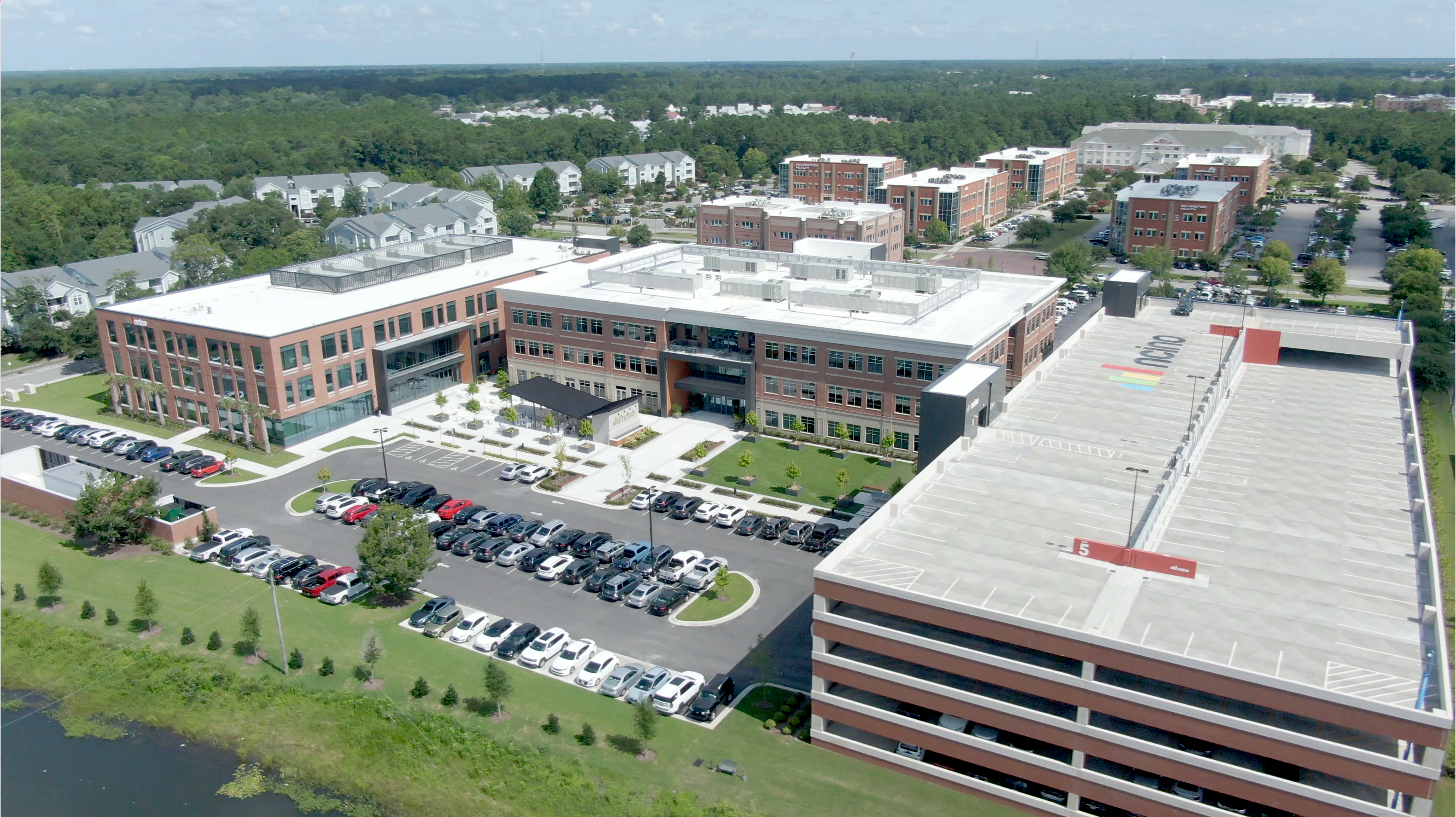
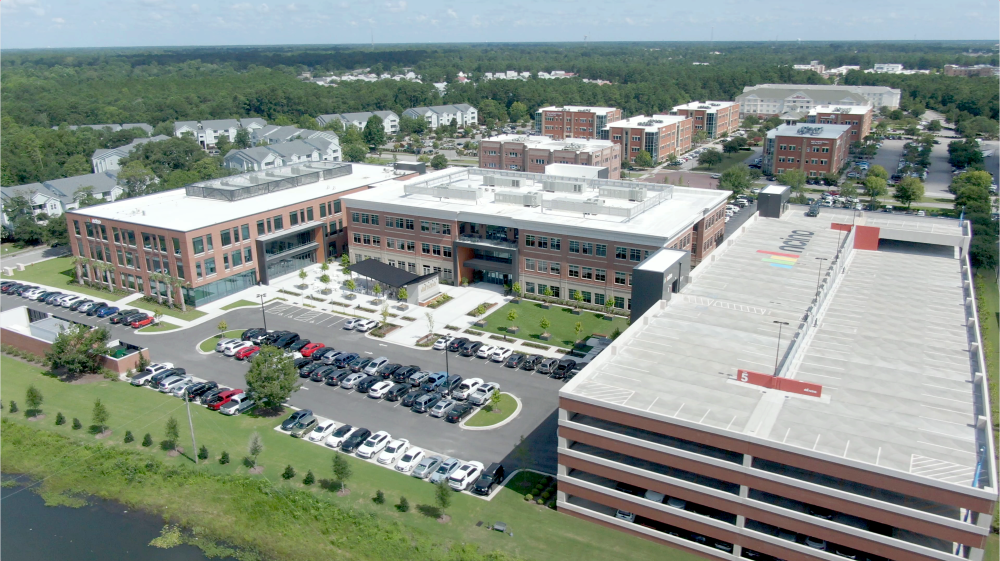
Sean Desmond, the new CEO of nCino, hinted at some of the products under development in an interview with American Banker. View the full article
-
Conglomerate has stepped up effort to cut holdings in US lenders in recent monthsView the full article
-
UK government switches strategy on AI regulation in hope of better ties with new US administration View the full article
-
This week Google added Veo 2 to YouTube Shorts and—wow, this article is already gibberish. Let me back up. YouTube Shorts is YouTube's TikTok knockoff competitor. Veo2 is Google's AI tool for generating videos. As of this week, you can use that AI to make clips for YouTube Shorts. This innovative and revolutionary change will forever alter the vertical videos most people scroll past so they can find the thing they actually wanted to watch. According to a confusingly worded announcement post, you can now create clips to add to your Shorts simply by typing a sentence. Anyone can create a Short right in the YouTube mobile app either by combining footage already saved to their phone or by recording directly. Now there's a third option: generating horrifying footage using AI. "Need a specific scene but don't have the right footage?" the post asks. "Simply use a text prompt to generate a video clip that fits perfectly into your narrative, or create a whole new world of content." I can't think of any place less appealing than a "whole new world of content." The very phrase conjures up mental images of a digital purgatory, an endless void of placeholder content where the unworthy are sent to after a life lived passively consuming. So naturally I wanted to try this out. I fired up the YouTube application on my phone found that the feature is a little buried. To generate a clip, you need to click the Add button in the bottom-left corner and then—instead of clicking one of the photos or videos on your phone—tap the Create button at the top of the screen. After that, you can type your prompt and tap Create. I hope this is how it all ends to be honest. Credit: Justin Pot You'll see four thumbnails—tap one and the AI will generate a clip for you. This will be added to your timeline, meaning you can edit it into the rest of the Short however you like. I played around with this a few times, mostly with cats eating planets (I wanted to see it). The results were not particularly convincing from a feline or astronomical perspective—I'd say it resembled the feeling of a fading memory of a dream more than actual video footage—but I certainly ended up with a video that included the elements I described. There's one more way you can use these videos—as an animated background for your Shorts. To do this, tap the down arrow on the toolbar to expand it, tap the Green Screen option, then tap the AI sparkle instead of one of your photos. As before, you will be given four thumbnails to choose from—the one you choose will become a video. You can then record yourself talking as the video loops in the background. Honestly, this seems like a decent use for AI—a quick and disposable visual flare for a video that is also quick and disposable. For what's it's worth, we have an article about how to hide YouTube Shorts from your feed, as does seemingly every other website on the internet. I wonder why that is. View the full article
-
Fannie Mae set aside $752 million for credit losses in its apartment complex lending business in part because of fraud or suspected fraud, denting profits amid an industrywide scrutiny of borrowers. View the full article

-
The Community Home Lenders of America wants streamlined regulations for smaller independent mortgage bankers from the Bureau, including on compensation. View the full article

-
At the same time builders and lenders report contracting credit on offer, sentiment in the residential construction industry improved in the latter half of 2024. View the full article

-
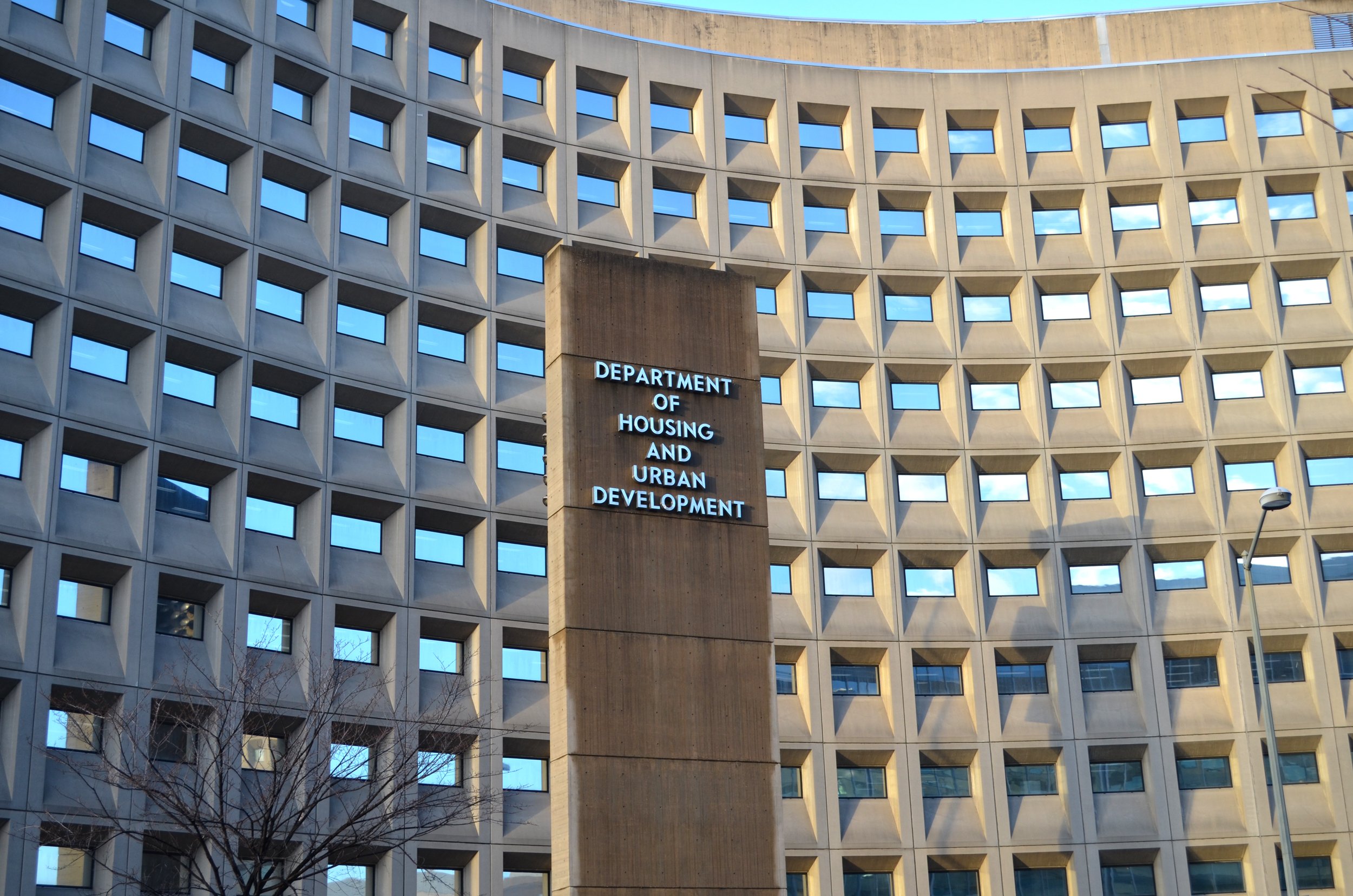
The president of the union for department employees claims 50% of HUD's workforce will be cut, and government contracts were being scrutinized. View the full article

-
Project management charts greatly help project managers plan, schedule and track progress on projects of all sizes. There are many types of project management charts and there’s one for each stage of the project life cycle such as project initiation or project closing charts, for example. There are also planning charts, diagrams and matrices for each of the key 10 project management areas such as cost, schedule, resource or stakeholder management. Luckily for project managers, there are many alternatives when it comes to choosing a project management chart to facilitate project planning efforts. In fact, using those charts is often a need for project managers. You’ll need to use a Gantt chart or a work breakdown structure to build your project plan, which is the foundation of your project. What Are Project Management Charts? Project management charts are visual representations of data that turn difficult project management concepts into easily digestible assets. They’re mostly used for project planning and take many shapes such as flowcharts, network diagrams or bar charts. Gantt charts, PERT charts, CPM diagrams and WBS diagrams are great examples. Project management charts are especially useful when you’re communicating complex project planning information. They visualize data and turn complex concepts such as your project schedule or scope into digestible data for the project management team and stakeholders. Data from project planning charts are even more useful when it’s tied to real-time project management software like ProjectManager. The software can take a static chart and turn it into a dynamic tool for planning, execution and reporting. Get started with ProjectManager today for free. /wp-content/uploads/2022/07/construction-gantt-resources-costs-150-CTA-BUTTON-1.jpgThe Gantt chart is an essential project management chart. Learn more Top 12 Project Management Charts Before considering which project management chart is best for you, it’s important that you first decide which project management methodology you’ll use as there are differences between waterfall and agile project planning. It’s also important to note that you’ll need a variety of project management charts as each serves different project planning purposes such as creating a project timeline, allocating project resources, planning project work and more. Below, we’ve selected the best project management charts for project planning so you can decide which are best for your project. 1. Gantt Charts Experienced project managers are familiar with the Gantt chart. It’s a dynamic bar chart that shows the project schedule on a timeline. Although Gantt charts started out as a basic tool, they’ve matured and include enticing features such as task dependencies that note when one task is related to another. Gantt charts are essential for modern project planning and scheduling because they allow project managers to visualize all of the activities that make up the project on a timeline. They’re also useful to monitor progress once the execution phase begins. /wp-content/uploads/2020/09/Gantt-Chart-Screenshot.jpgFree Gantt chart template Download now With new computing power, Gantt charts evolved from a basic bar chart to an essential project management tool that allows project managers to identify the critical path, assign tasks, establish task dependencies, generate a project timeline and much more. This is why most modern project planning software now includes Gantt charts. One of the biggest advantages of using Gantt charts is that it also allows to create roadmaps to visualize the timelines of multiple projects in a program or project portfolio. Online Gantt Charts for More Flexibility All Gantt charts aren’t equal; other project management software programs have Gantt charts, but they’re basic in functionality. ProjectManager offers Gantt chart features that the competition hasn’t yet considered. To start, ProjectManager can import your task list and schedule from a static spreadsheet. If your plan was developed in Microsoft Project but you want to move that plan online to share with your team, know that ProjectManager facilitates the import of Microsoft Project files. Once you have your project plan in ProjectManager, our online Gantt chart is a project management chart on steroids. You can link task dependencies to prevent team members from getting blocked. You can also assign tasks directly from the Gantt view which is an interactive project timeline that you can adjust in real time. Comment at the task level and all status updates are instantly reflected on the Gantt chart, which feeds into a real-time dashboard with project metrics that can be filtered and shared. 2. Work Breakdown Structure (WBS) Diagram One aspect of project planning is organizing project activities, deliverables and timelines. That’s where a work breakdown structure (WBS) comes in handy. It’s a way to take the tasks a team must accomplish and split them into manageable sections. The WBS is a deliverable-oriented hierarchical decomposition of the work to be executed by the project team. In other words, it’s a great way to visualize the tasks that need to be done in order to complete the project. It acts as a slightly higher-level view than a Gantt chart, which is useful for complex projects. A WBS can be represented as a list, a tree diagram, a spreadsheet or a column on a Gantt chart. /wp-content/uploads/2020/09/WES-Screenshot.jpgFree workbreakdown structure template Download now Once you have that information collected in our WBS diagram template, if you want a more dynamic tool that has more options, connect it to ProjectManager’s work breakdown structure software. Upon moving the WBS diagram to ProjectManager, content is reflected over the different views in the software including the Gantt, task list and kanban board, a visual workflow tool. The online Gantt chart turns the WBS diagram into a powerhouse for project planning. 3. Flow Chart Flow charts are another tool project managers should have in their toolbox when project planning. These charts help visualize processes as a way to improve project efficiency. The flow chart is a graphic display of the project’s objective and helps create a logical order of the work required to reach that goal. Planning a project is all about control, and a flow chart gives a project manager a tool to exercise control over tasks, resources and time. This means all processes, including planning and monitoring, refer to the flow chart to increase efficiency. This flowchart template has the basic symbols you need to represent a process. An oval means the start or finish of the process A rectangle represents an activity, or step in the process An arrow represents the direction from one step to another A diamond represents a decision The example below shows the process of creating a project plan, and getting it approved. /wp-content/uploads/2023/11/flowchart-template-screenshot-600x618.pngFree flowchart template Download now 4. Critical Path Diagram (CPM) Another visual planning tool is the critical path diagram (based on the critical path method, or CPM). It’s used to show the activities that are required to complete the project. The diagram illustrates the duration of each activity and the preceding activity, how the two are related and lag (the amount of time between two activities). A critical path diagram helps project managers break down a more extensive project into necessary activities in order to deliver a successful project. These activities are represented on the diagram as boxes. Between these activities or boxes are lines that represent the flow to show how each activity is connected and interconnected. /wp-content/uploads/2024/05/critical-path-method-screenshot.pngFree critical path template Download now The purpose of using a critical path diagram is to allow project managers to calculate the total duration of a project. The critical path is made up of critical activities but non-critical activities are also shown. Non-critical activities allow for more flexibility as they don’t have a major impact on the project. 5. RACI Matrix RACI is an acronym that stands for responsible, accountable, consulted and informed. A RACI matrix is a chart that helps assign responsibilities in project management. This table helps project managers identify stakeholders in their projects and gauge each level of involvement. This is done by noting next to each the initial R, A, C or I to categorize engagement. For example, a responsible stakeholder means they’re directly responsible for the task. Accountable defines someone who delegates and reviews the work. Consulted means you’ll want this person’s input and feedback on the work being done, and informed are individuals who need to be updated on the progress of the work. /wp-content/uploads/2020/05/RACI-Matrix-Screenshot.jpgFree RACI matrix template Download now This is useful for assigning the responsibilities of team members on a project. But it can also be used to manage stakeholders. The RACI matrix helps a project manager to figure out which stakeholders need to know what and the frequency by which they should be updated on the progress of the project. 6. PERT Chart This visual project management tool is great when you’re mapping out tasks and project timelines. PERT is another acronym that stands for project (or program) evaluation and review technique. It provides a graphical view of the project’s tasks, schedule and timelines. A PERT chart is not a Gantt chart, though similar. Gantt charts are bar graphs while a PERT is freeform. PERT charts are made of nodes, boxes or circles that represent milestones. Connecting arrows show what must be completed between nodes and they represent the duration of each task. /wp-content/uploads/2024/05/pert-chart-template-screenshot.pngFree PERT chart template Download now Some Gantt charts don’t show task dependencies, but all PERT charts do. They use directional, concurrent arrows to indicate a series of tasks that must be completed in a specific sequence. Diverging arrows indicate work that can be done in parallel. 7. Workflow Diagram Workflow diagrams visually show the layout of a process, project or job. This is done as a flow chart. Workflow diagrams are commonly used to show the full business process and information flows, help employees understand their roles and responsibilities, expose redundancies and bottlenecks and avoid risks. This project management chart can be made with software or drawn manually. Whichever route you take, you’ll get significant value from the workflow diagram. They help with operations and create greater efficiency by streamlining work. They also provide documentation for legal, compliance and audit requirements. They’re a great tool for clear communication across the organization. Visual tools are often easier to digest no matter which department is looking at them. The workflow diagram is also a way to strengthen security. Workflow diagrams track information securely and make sure your organization is on top of any security gaps. 8. Risk Matrix Risks can be good and bad, and project managers want to either take advantage of these unexpected opportunities or mitigate the impact of problems on the project. A risk matrix is used in project planning to identify and resolve risks as they arise as issues in a project. The risk matrix lists risks that could occur based on experience and historical data. The matrix represents the likelihood of the risk appearing in the project and the impact it will have if it does show up. Risks are categorized based on probability and severity. /wp-content/uploads/2021/09/Risk-Matrix-Screenshot.jpgFree risk matrix template Download now This tool helps project managers with their risk management on a project. It also communicates the risks that might become issues in the project to the project team and stakeholders. This allows teams to quickly capture these issues and resolve them. 9. Milestone Chart The milestone chart is a visual timeline that helps project managers plan for significant events in their project schedule. Milestones are important events in a project, such as delivering the project plan or the end of one project phase and the beginning of the next one. Each vertical line of the milestone chart shows one milestone. There’s a description of the milestone on the left-hand side of the milestone and a horizontal time scale that charts the entire project. The milestone chart helps keep your team, stakeholders and customers updated on major project events. Making milestones in your schedule and tracking them throughout the project is one way to stay on schedule. Sharing the milestone chart communicates the major events in the project and ensures that everyone is aware of them. It’s like having advance notice for big deadlines that must be met. Because a milestone chart is a simplified version of a project schedule, they’re commonly used to report on the progress of multiple projects in a program or project portfolio to stakeholders such as executives who need a high-level view project status report. 10. Burndown Chart In agile project management, a burndown chart is used to visually represent how quickly the project team is going through the customer’s user stories and it shows the description of the features being worked on. These descriptions are from the perspective of the end-user. The burndown chart shows the team’s effort against the full sprint. The work that’s still to be done is shown on a vertical axis. The time passed from the beginning of the project is shown horizontally. This presents both the past and the future so everyone can see where they are. The burndown chart is updated regularly to make sure it’s accurate. There are two types of burndown charts: one is used for sprints, or short iterations when their agile team works on user stories, while the other is a product burndown chart. The latter shows the work that remains for the entire project, while the former is only what’s left to accomplish. 11. Decision Matrix A decision matrix is a project management chart that helps project managers evaluate different choices by assigning a numeric value to them based on a set of decision-making criteria. Let’s imagine a construction project manager is using a decision matrix to decide what’s the best type of flooring for a residential project. He has three alternatives to choose from, hardwood, cement or carpet. To make the best decision, he should consider criteria, such as the quality, cost, value to the customer and safety that each of these options offer. Depending on how each alternative is scored, the decision matrix helps the construction project manager to logically determine which is the best choice. /wp-content/uploads/2023/10/decision-matrix-screenshot.pngFree decision matrix template Download now The image below shows how the decision matrix would look for this particular scenario. Download our free decision matrix template for Excel to create one for your projects. 12. Eisenhower Matrix An Eisenhower matrix is a table with four quadrants that are used to prioritize projects or tasks by their level of importance and urgency. To understand how this project management chart works, it’s necessary to define what importance and urgency mean when creating one. In an Eisenhower matrix, importance refers to how impactful a task is for the success of a project, while its urgency defines how soon it should be completed. By placing tasks in the four quadrants of the Eisenhower matrix, project managers can understand the relationship between these two variables. Depending on how important and urgent a task is, there are four possible courses of action, which are completing the task immediately, delaying its completion, delegating or eliminating it. An Eisenhower matrix can also be used as a project prioritization tool by project management offices (PMO) that need to decide which projects or programs should be executed first. 13. Kanban Board A kanban board is an essential project management chart that visually maps various phases that a task travels through. Tasks are represented by cards that are placed in the “to do” column and as progress is made, they move through various stages that the project manager defines. One main benefit of using a kanban board is that it allows for easy adjustments to priorities and workflows. /wp-content/uploads/2023/03/kanban-board-excel-template-1600x538.jpgFree kanban board template Download now The goal of a kanban board is to maximize efficiency and limit work-in-progress. They offer a shared understanding of the project’s status to help facilitate communication and teamwork. They’re used in a variety of settings from software development to project management to personal task management. They’re a simple yet powerful tool to help boost productivity and achieve goals. 14. Decision Flowchart A decision flowchart is an example of a project management diagram that helps map out a series of decisions and their potential outcomes. Think of it as a roadmap for the decision-making process as it offers insights through different paths based on the choices that are made. This flowchart includes key elements like start/end symbols, decision diamonds, process boxes and arrows. /wp-content/uploads/2024/12/Decision-flowchart-template-ProjectManager-e1734979252659-600x529.pngFree decision flowchart template Download now Some benefits of using a decision flowchart include that it clarifies complex decisions into smaller and more manageable steps, improves decision making and helps visually communicate the decision-making process to others. 15. SIPOC Diagram SIPOC stands for suppliers, inputs, process, outputs and customers. Similar to other project management charts, this is a visual tool that helps document and understand a process, usually before starting on improvement efforts. The main goal of a SIPOC diagram is to offer a high-level overview of a process and its boundaries. It helps define the project scope, focus on the customer, identify improvement opportunities and gain a shared understanding of how the process works. /wp-content/uploads/2024/05/sipoc-template-image-1600x745.pngFree SIPOC template Download now Ideally, SIPOC diagrams are used at the beginning of a process improvement process, typically when using methodologies like Six Sigma or lean project management. 16. Requirements Traceability Matrix A requirements traceability matrix (RTM) helps map and trace project requirements throughout the project life cycle. It’s similar to a table that links requirements to different elements like test cases, design documents and risks. Typically, it includes requirements, design documents, risks and test cases. It acts like a roadmap that shows how each requirement is connected to everything else in the project. /wp-content/uploads/2025/01/Requirements-traceability-matrix-template.pngFree requirements traceability matrix template Download now An RTM is important because it helps manage scope creep by linking requirements to other elements and ensures that all requirements are addressed in the project deliverables. It also helps testers understand what needs to be tested and ensures a shared understanding of requirements and their relationships. 17. RAID Log RAID stands for risks, assumptions, issues and decisions. Like other project diagrams we have discussed, it acts as a central repository for information throughout the project life cycle, specifically focusing on risks, assumptions, issues and decisions. It’s created during the planning phase and updated regularly as the project progresses. /wp-content/uploads/2023/08/raid-log-template-1.jpgFree raid log template Download now Primarily, RAID logs are used to help proactively manage risks by identifying and documenting them early. This allows teams to develop risk mitigation strategies and contingency plans. It also acts as a communication tool to keep stakeholders informed about potential risks, ongoing issues and key decisions. ProjectManager vs. Project Management Charts Project management charts are great visual aids and are helpful tools to set up the procedures for your project, but static documents can only do so much. When you start to plan and execute the project, you need project management software to connect teams and streamline work. ProjectManager is project management software that automatically updates with real-time data to help you better manage your project. Track Time and Costs with Real-Time Dashboards With static documents, you have to input the data and manually update your project management charts, but our software does that busywork for you. Real-time dashboards automatically collect live data from the project, crunch the numbers and display the results in project charts. These six project metrics include time, cost, workload and more, all updated in real time to give you an overview of your project whenever you want it. There’s no setup involved, either. /wp-content/uploads/2022/03/Dashboard_Construction_Wide_Zoom-150.jpg Use Kanban Boards for Task Management Once you’re executing the project, you need a window into the process and a tool that gives your team the autonomy to manage their work. Our kanban boards visualize workflow, allowing project managers to see where their teams are in terms of production and catch any potential roadblocks. Then they can reallocate resources to keep teams working at capacity. Meanwhile, teams can manage their backlog and collaborate when planning sprints. /wp-content/uploads/2022/05/Kanban_Marketing_Wide_Zoom-175_Moving-task-to-different-status.jpg Unlike project management charts, our software is flexible enough to give you the tools you want to use. Our multiple project views mean managers can plan on Gantt charts, teams can use list views to check off their tasks, stakeholders can view calendars to make sure milestones are met and all views share the same real-time data. There’s one source of truth that keeps everyone working better together, collaborating, sharing files and commenting at the task level. Related Content Check out our guides, blogs and templates where you can get in-depth information on more project planning charts and diagrams, so you can use them in all of your projects for better results. What Is SIPOC? How to Use a SIPOC Diagram Project Prioritization Matrix Template How to Make a Responsibility Assignment Matrix How to Make a Project Network Diagram An Intro to Precedence Diagrams Arrow Diagrams for Projects Gantt vs. PERT vs. Network Diagram PERT and CPM: Their Differences and How to Use Them Together Planning can make or break a project, so you want to have the best tools at your disposal when going through the process. ProjectManager is online project management software that helps you plan, execute, monitor and report on all of your projects. It works seamlessly with the project planning charts described above and has a robust set of project management tools to manage resources, time and cost. See how it can help you plan your project by taking this free 30-day trial today. The post 17 Best Project Management Charts for Project Planning appeared first on ProjectManager. View the full article
-
Monday.com is a recognized brand that has aggressively promoted its work management software to the general public. But is it project management software? One way to find out is by examining its features. For example, is there a Monday dashboard? Project dashboards are essential project management tools. They offer an overview of key performance indicators (KPIs) that help project managers and team members keep track of schedules, budgets and resources. Let’s see if there’s a Monday.com dashboard and, if there is, if it lives up to industry standards. What Is Monday.com? Monday.com is a work operating system designed to help teams plan, track and manage their work. It’s an online platform that enhances collaboration, project management and workflow automation. The tool is made for various types of teams–from marketing, product development and IT to sales and operations–enabling users to streamline their processes, improve productivity and maintain visibility into the process of tasks and projects. Founded in 2012 under the original name of Depulse, the software was developed to help teams collaborate and manage tasks, which developers felt was lacking in the marketplace. By 2017, the company rebranded as Monday.com and expanded beyond basic task tracking to a full-fledged work tool, allowing companies to manage everything from workflows to communications in a centralized space. We’ll get to the Monday dashboard question in a moment, but first, let’s explore the features that fulfill its promise to “Work Without Limits.” At the heart of the software are boards, which allow teams to organize tasks and projects similarly to kanban, with rows and columns. It also has automation to reduce manual work, integrates with many third-party apps and has time-tracking features to help teams log time spent on tasks or projects. Built on a collaborative platform, reporting tools, workload management and customizable templates exist. Does Monday.com Have a Dashboard? This leaves us with the question of whether there is a Monday dashboard. But first, a bit of information on why dashboards are so important to project managers and team members. Project dashboards are visual tools used to display key project data and metrics in a centralized location. They provide a quick view of the project’s status, progress and health through charts, graphs and tables. The key features that users should be on the lookout for include delivering real-time data to reflect the most up-to-date status of the project. These visual tools make it easier to digest data in a centralized overview of a project or multiple projects. They compare the plan against the actual progress to help steer the project to a successful end through improved decision-making. Short Answer: Yes, Monday.com Has a Dashboard The Monday dashboard can do many things, but it also lacks features that project managers and their teams need. While it has the basics, such as customizable widgets, data consolidation, real-time updates tracking workload, deadlines and more, it doesn’t go the extra mile to provide the robust metrics that help guide projects to successful completion. /wp-content/uploads/2025/02/Monday-Dashboard.png Long Answer: Monday.com Dashboards Lack Key Features for Project Management The Monday dashboard has many issues that make it not ideal for those looking for superior project management software. For instance, it has limited customization of widgets and visualization and scaling issues, which makes it a poor choice for larger projects. Performance lags when working with large teams or complex workflows. That’s only the beginning of the criticisms, though. Not Ideal for Project Portfolio Management: Dashboards are more suited for tracking individual boards or a limited scope of projects. They lack robust, high-level tools to manage and prioritize an entire project portfolio, such as interdependencies between projects or portfolio-wide resource planning. Lack of Planned vs. Actual Comparisons: While Monday.com dashboards provide real-time data, they don’t inherently include planned vs. actual performance comparisons unless users create custom workarounds or integrations. This makes it harder to track variances or delays against the original project plan. Doesn’t Show the Percentage of Completion of Tasks: Dashboards don’t intuitively display the percentage of task completion. Users must manually set up progress indicators like the “Battery” widget, which may not always meet detailed tracking needs. Those who want a powerful project dashboard turn to ProjectManager, an award-winning project and portfolio management software with real-time project and portfolio dashboards. That means project managers and team members can get a high-level overview of a significant project, program or portfolio of projects. Dashboards have easy-to-read graphs and charts that show metrics such as time, cost, workload and more, with planned vs. actual effort and percentage of completion. Get started with ProjectManager today for free. /wp-content/uploads/2024/04/Light-mode-portfolio-dashboard-CTA.pngProjectManager’s dashboards are better than a Monday.com dashboard. Learn more Cons of Making a Monday.com Dashboard Another issue with a Monday dashboard is that users have to build it. Unlike ProjectManager, where the dashboard is ready to view immediately upon setting the baseline in the Gantt chart, Monday.com requires users to customize and build their dashboards from scratch, selecting the data they want to visualize and how they want it displayed. The issues with this are as follows. The setup is time-consuming and achieving the ideal dashboard may require several iterations There’s a learning curve to understanding how to connect multiple boards, adjust widgets and choose the right metrics and know the data structures within the software to link them effectively, which can be confusing A variety of pre-built widgets limit customization and there’s a lack of advanced data visualization Ongoing maintenance is required as projects evolve or new data is added, and if a team or project workflow changes, users might have to redesign or update the dashboard It’s not easy to track dependencies across projects, especially with multiple teams or projects that are highly interconnected Premium features are behind paywalls and for teams or businesses on a budget, the additional cost of upgrading to access these features is a drawback, especially compared to competitors that offer these features in lower-cost versions How to Make a Monday.com Dashboard Better With ProjectManager Importing a project from Monday.com to ProjectManage illustrates the advantages of using our dashboard over a Monday dashboard. Not only are users getting a more useful dashboard feature, but access to superior Gantt charts, secure timesheets and more detailed analytics. Simply take a free 30-day trial of ProjectManager, no credit card required, and follow these simple steps. /wp-content/uploads/2025/02/monday-pm-import-dashboard.png 1. Export Your Monday.com Project Begin by exporting the project data from Monday.com into an Excel file. This will allow you to transfer the information to ProjectManager. 2. Select the Excel File and Import Into ProjectManager Open ProjectManager and navigate to the import section on the Gantt chart. Choose the Excel file you just exported from Monday.com and upload it into ProjectManager. /wp-content/uploads/2022/10/Gantt-import-light-mode.png 3. Add the Data to a New or Existing Project Once the file is uploaded, you can either create a new project or add the data to an existing project in ProjectManager. This flexibility lets you choose how to organize your tasks and workflows. 4. Choose What Data to Import & Toggle to the Dashboard View During the import process, you’ll be prompted to select the specific data points you want to import. You can filter the data to include only relevant tasks, milestones, deadlines or other important metrics. Remember to set a baseline on the Gantt chart to compare actual versus planned data. Once the data populates, toggle to the dashboard view to see live project data. 5. Success! View Monday.com Dashboard Data in ProjectManager After the import is complete, you can now view your Monday.com project data in ProjectManager’s enhanced dashboard, which offers advanced project management tools such as Gantt charts, task assignments and real-time reporting. ProjectManager Has a Better Dashboard than Monday.com While a Monday dashboard offers basic project management features, ProjectManager takes it a step further with its advanced dashboard capabilities. It provides comprehensive tools for monitoring progress, tracking costs, managing workloads and more. Here’s a breakdown of how ProjectManager’s dashboard features stand out: Project Portfolio Management Dashboard: ProjectManager allows you to manage multiple projects from a single view, offering an at-a-glance overview of all active projects. Users can track key metrics, timelines and resource allocation across the project portfolio, helping to prioritize and make data-driven decisions. Planned vs. Actual Project Management Data: This feature compares a project’s planned milestones and timelines to the actual progress. With ProjectManager, you can instantly identify discrepancies and adjust project plans to stay on track, providing better insight into project health. Progress Tracking: This compares a project’s planned milestones and timelines to the actual progress. With ProjectManager, users can instantly identify any discrepancies and adjust their project plan to stay on track, providing better insight into project health. Cost Tracking: Keep a close eye on the project’s budget with ProjectManager’s detailed cost-tracking features. It tracks actual spending versus budgeted costs, helping to ensure the project stays within financial limits and providing transparency to stakeholders. Workload Management Data: Monitor the team’s workload, ensuring that tasks are balanced and resources are appropriately allocated. The dashboard shows real-time data on team capacity, task assignments and potential overages, helping prevent burnout and optimizing team productivity. Slippage Reporting: This allows you to track delays and deviations from the project schedule. This feature helps you identify causes of slippage, whether it’s resource issues or task delays and take corrective actions before they impact the overall timeline. Monday.com Dashboard Example Let’s look at a Monday dashboard to see how it works. The one illustrated below is for a sales team. As with any visual analytic tool, this one is made up of bar graphs and other types of charts. /wp-content/uploads/2025/02/Monday-Dashboard-Example.png For example, there’s a bar chart that tracks the total revenue over time. A list of top projects is also provided, as well as a map to show sales by country. Another bar chart captures volume vs. service levels. This Monday dashboard example is a fair representation of how the software works. How to Make a Dashboard In Monday.com For those who don’t want to upgrade, here’s a tutorial on how to create a Monday dashboard. Start in the software by selecting the dashboard tab. Click “create new dashboard” and name it. Choose from a variety of pre-built widgets and select the specific boards and data you want to display for each. At this point, customize the widgets to display the relevant data. This involves linking your boards and understanding what data is needed to showcase. Now, organize the widgets and fine-tune the layout for readability. As projects evolve, regularly update and adjust the dashboard to reflect changes. As noted, this is time-consuming and can be difficult. The Monday.com dashboard isn’t fully customizable and limited by the pre-built widgets. There are also issues with linking multiple boards, selecting relevant data and ensuring it flows smoothly. It’s a trial-and-error effort and not workable with multiple projects. Why ProjectManager Is a Better Project Tracking Software Than Monday.com The Monday dashboard might be helpful for individuals trying to work more productively, even smaller teams could find it useful. However, any project management professional will balk at wasting time creating a dashboard and then having that dashboard not be able to do fundamental project tracking functions, such as comparing planned against actual effort or monitoring multiple projects in one place. That’s why project managers and their team members choose ProjectManager, an award-winning project and portfolio management software with powerful dashboards and more. Plan, Schedule and Track With Multiple Project Management Views Like Monday.com, our software has multiple project views. Unlike Monday, though, we have a real Gantt chart that schedules tasks, resources and costs. More than that, it can link all four types of task dependencies to avoid delays and cost overruns that impact the budget and schedule. Once a plan is in place, set a baseline to track progress in real time. These plans are shared across the software, allowing teams to manage their work on kanban boards that visualize workflow or task lists that prioritize, tag and track progress. There’s even a calendar view that stakeholders can use to stay updated on progress. /wp-content/uploads/2024/04/critical-path-light-mode-gantt-construction-1.png Track Costs with Online Timesheets, Workload Charts and Reports There are more ways to track work than just the high-level view provided by our dashboards. For example, secure timesheets can streamline payroll but are also a window into labor costs to help keep to the budget. They also monitor how much work each team member is doing compared to their assignments. Color-coded workload charts offer a view into resource allocation, showing who’s overallocated or underutilized. Managers can balance their team’s workload from the chart to keep teams working at capacity without threatening burnout. Customizable reports can be filtered to go into detail or summarize progress and shared with stakeholders to keep them informed. /wp-content/uploads/2024/05/timesheet-lightmode-good-version-lots-of-tasks.png Related Monday.com Content This isn’t the first time we’ve reviewed Monday.com or wrote about the importance of dashboards. For those looking to read more on those topics, check out the links below. They lead to recent posts on Monday.com alternatives, free templates and much more. Best Mondayu.com Alternatives Free & Paid Options Monday.com Gantt Chart: How to Make a Gantt Chart With Monday.com Project Dashboard Template (Free Excel Download) KPI Dashboard Template Budget Dashboard Template for Excel (Free Download) ProjectManager is online project and portfolio management software that connects teams whether they’re in the office or out in the field. They can share files, comment at the task level and stay up to date with email and in-app notifications. Join teams at Avis, Nestle and Siemens who are using our software to deliver successful projects. Get started with ProjectManager today for free. The post Monday.com Dashboard: Key Features, Pros and Cons appeared first on ProjectManager. View the full article
-
THINK back to the last difficult conversation you had. What happened? Maybe you lashed out, got defensive, dodged or overexplained; possibly you lied, got passive-aggressive, or completely shut down, unable to talk. Whatever the reaction, I want you to know that it’s normal. In high-stress interactions, our walls go up, and our armor comes on and we’re ready to protect ourselves in any way we can. Most of the time in difficult interactions, we turn cold. Our bodies tense up, and we’re on the defensive. We start saying things that are hurtful and unhelpful and likely have to repair the situation with multiple conversations to get the issue resolved. This toughness that we exude during hard interactions has a tendency to keep us rigid and unable to move the conversation forward in a productive way. Think about what might happen if you did the opposite. If you were able to relax in these high-stakes and stressful moments — what would change? Those in leadership are often scared of losing their edge. They don’t want to be too soft or too Zen because they’re nervous to be more human in a work setting. It’s more professional to be at odds, cold, serious, standoffish, untouchable, inaccessible. Since being human isn’t necessarily what got them to where they are in their careers, to begin with, they aren’t sure if the act of softening is for them. I would raise an eyebrow if some people didn’t think this was a bit outside the box; however, at the end of the day, what’s most important is for the work to get done, the bottom line to be met, and everyone to go home feeling fulfilled and of service, and if that’s the experience people want, then learning how to soften in the moments we want to be hard is the way to go. Below, I’ll share four reasons why softening within a difficult interaction is crucial as an authority figure. Adaptability Think about difficult conversations like you would martial arts. If someone is attacking you and your whole body is stiff, hard, the attacker can simply push you, and you’ll fall down, break easily. But if instead you drop your weight and soften the body, you become fluid, able to move, adapt, pivot, and navigate the situation with grace and confidence. Employees want to see those in leadership positions show calm under pressure, where moments of crisis or stress are met with more openness and creativity; where they can show different ways of handling and solving a problem - showing that there’s another way forward, even when others can’t see it. To be able to access this trait within a hard conversation means we must soften within it—let our guard down—so we can think clearly and talk wisely. Loyalty and Trust Think of the scenarios that come up daily where you react too quickly to fix the problem, forgetting about the people or group who brought the issue to you. Or maybe there have been instances where you have felt tension on your team and said you were open to hearing what was needed, but the moment it was shared, you went straight to defending and justifying your actions. When we find a way to relax within the interaction, we’re able to be more compassionate during heated interactions. We get to meet those expressing themselves where they’re at first, and then help to solve the issue second. Opening ourselves up to listen and acknowledge the other person or group during a stressful moment, helps those coming to you feel that they can trust you. Once trust is established and a bond is formed, loyalty is close behind. Creativity and Productivity In our lives, we go off instinct, and one of the most popular ways to manage others off instinct is to micro-manage. Where we’re constantly checking in on our teams, having meetings, 1:1s to make sure everyone is doing their job and on track. This constant monitoring is a result of mistrust of those around us. Our fear is what is driving the behavior and the interactions. When we start to calm our nervous system and move ourselves out of fear and into more rest within interactions, we start choosing different behaviors and words. We come from a more abundant mindset instead of scarcity and are then able to trust those around us more and give them permission to thrive in their positions on their own—for them to show us what they can do. Letting go of the reins and finding the calm within our interactions helps give those we work with space to create and thrive. Humanness Right now, the world is swept up by advances in technology. We’re connected all day long, emailing at all hours, even on weekends. In the working world, being is not what’s important. Doing is. All this doing is leading more and more employees to burnout and creating a toxic company culture. What softening does is bring back the idea of humanness. It reminds us to think of others in hard moments, to see if we can be helpful and supportive, even when it’s challenging to do. To see what a person or group of people needs, acknowledge it, and respond accordingly. So much of business is focused on outcomes and numbers that we forget it’s actual people who are doing the work. Softening helps us connect with each other, even when it’s hard to do. When I first start working with clients, their eyebrows raise when I share with them this idea of softening. There’s a lot of discomfort around the word itself. Won’t others walk all over me, take advantage, or think I’m not fit for the position I’m in? And what I say is this: Softening helps you connect with those you work with; it’s what allows you to be heard, understood, and human in the moments when your people need you to be. Softening is what gives you the opportunity to think clearly and live into the quote often attributed to Albert Einstein, “You cannot solve a problem with the same mind that created it.” In heated moments, it’s turning the body and mind from ice (hard and impenetrable) to water (soft and fluid). Where can you start to soften in your interactions today? * * * Cynthia Kane helps people enhance their lives and relationships by teaching them how to become less reactive in difficult conversations and speak to themselves, others, and their environment in a kind, honest, and helpful way. She has taught over 70,000 people how to change the way they communicate through her books and the Kane Intentional Communication Training Program. She is the author of The Pause Principle: How to Keep Your Cool in Tough Situations. She is a certified meditation and mindfulness instructor, certified breathing coach, and the founder of the Kane Intentional Communication Institute, LLC. * * * Follow us on Instagram and X for additional leadership and personal development ideas. * * * View the full article