Newsletter
Want to keep up to date with all our latest news and information?


ResidentialBusiness
Administrators
-
Joined
-
Last visited
Everything posted by ResidentialBusiness
-
State governor says that duties will lead to job losses and higher pricesView the full article
-
I was taught that hard work would get me ahead, would ultimately pay off, and would get me promoted. But several years ago, when I was passed up for yet another promotion, I was angry and devastated because I was convinced that I had deserved that promotion. How could I not have been promoted after all the hard work I had been doing? A mentor I reached out to finally confided this to me, “Yes, you are working hard. But you are working on the wrong things. You need to be working on things that get you visibility.” I was doing lots of work, but with little visibility. I didn’t realize that only focusing on working hard was the quickest way to not get promoted. Even if I thought I was performing exceptionally, others didn’t have that perception of me. They didn’t see me in action on the things that mattered to them. It wasn’t clear or evident to them that I was capable and should be promoted. So if you aren’t getting promoted, it’s not that you didn’t deserve a promotion, or that you aren’t capable, or that you haven’t earned it. Here’s what you might not recognize: You aren’t visible to the leaders who are behind closed doors making decisions about your career. So if you want to get promoted, start with focusing on the following three things: Prioritize what’s important to your organization Especially in this current market, companies are having to make hard choices across the board. They are faced with executing layoffs, changing direction in strategy, cancelling initiatives, and more. Companies are prioritizing, reprioritizing, and reprioritizing again, assessing what’s the most important thing for them to achieve at this moment. And you need to make sure you have a clear understanding of what those changing priorities are. Review your project list and your goals for the year. What percentage of items are still relevant to your company’s changing priorities? All of it? Some of it? Or none of it? If you are quietly working on projects that are no longer a priority for the company, or have been put on the back burner, your work has become invisible. All that hard work has been forgotten or is just no longer important at this moment. Check in with your boss on what you are currently working on. They may have forgotten that you are still working on something that’s no longer relevant. When meeting with them, share with them what you have heard the company’s priorities are. Make sure you are raising your hand to take on work that’s important to leadership and helps you get the visibility you need. Every job will include non promotable or administrative work. And if you are working hard on invisible work only, you need to adjust quickly to ensure your work is getting on the radar of those making decisions about your career. Make sure you are visible to other leaders One of the biggest mistakes I made was to tie all my career fortunes to my boss. At one point in my career, I became exceptional at managing up to this one boss. She knew what I was working on; she had me leading a lot of visible work with very little non promotable or administrative tasks. She advocated for me in rooms I wasn’t in. She coached and guided me on what I needed to do to get promoted. Unfortunately for me, she got a great external opportunity and left the company. And then I was left all alone, trying to navigate my career. I had lost my only career champion at the company. Make sure you aren’t just visible to your boss, but also to other leaders. If your company encourages skip level meetings, get a meeting with your boss’s boss and whoever is running your division. And if they don’t, you can certainly schedule this or ask your boss ahead of time, so they don’t think you are going behind their back. It can be a short meeting to ask them questions about their career, but also to give them the highlights of what you are working on. You can send them quick updates once a month on progress, or share articles or books you have been reading that are pertinent to the challenges and opportunities your company is currently facing. Also, build relationships with your boss’s peers. When my boss left, one of her peers took over our team. I wish I had built a relationship with her sooner so she knew what I was working on and how I was adding value. Remember, you want to be visible not just to your boss, but to anyone who has a say in whether or not you get promoted. Be ready to present in big and small moments I thought my hard work would speak for itself. Even if I was working on the right things, I kept my head down and worked hard, and worked some more. I didn’t think I needed to promote what I was doing; that quite frankly seemed like a waste of time. I needed to be focused on the work, and not talk about the work. Now, I think about so many missed opportunities in my career to share what I was working on and be visible. All those missed opportunities cost me a number of key promotions along the way. So be ready to present, share, and be visible in those small and big moments. If they are looking for nominations to present projects at the next town hall, say yes. If they are looking for someone to ask the CEO a question about the shifting priorities, raise your hand. If they want someone to kick off a team meeting with a highlight on their project, volunteer to do it. Any opportunity to be visible and showcase what you are working on, take it. I shifted my mindset to realize this: It wasn’t about me bragging about what I was doing. It was me sharing the value I was adding to the company, and a great opportunity to hear questions and get inputs along the way to make my work stronger. Instead of just working hard heads down, becoming more visible also meant I could get more coaching from other leaders. If you are disappointed that you aren’t getting promoted, all is not lost. Shifting from working really hard under the radar to working on the right things and being visible might just be what you need to get on the path for the promotion you deserve. View the full article

-
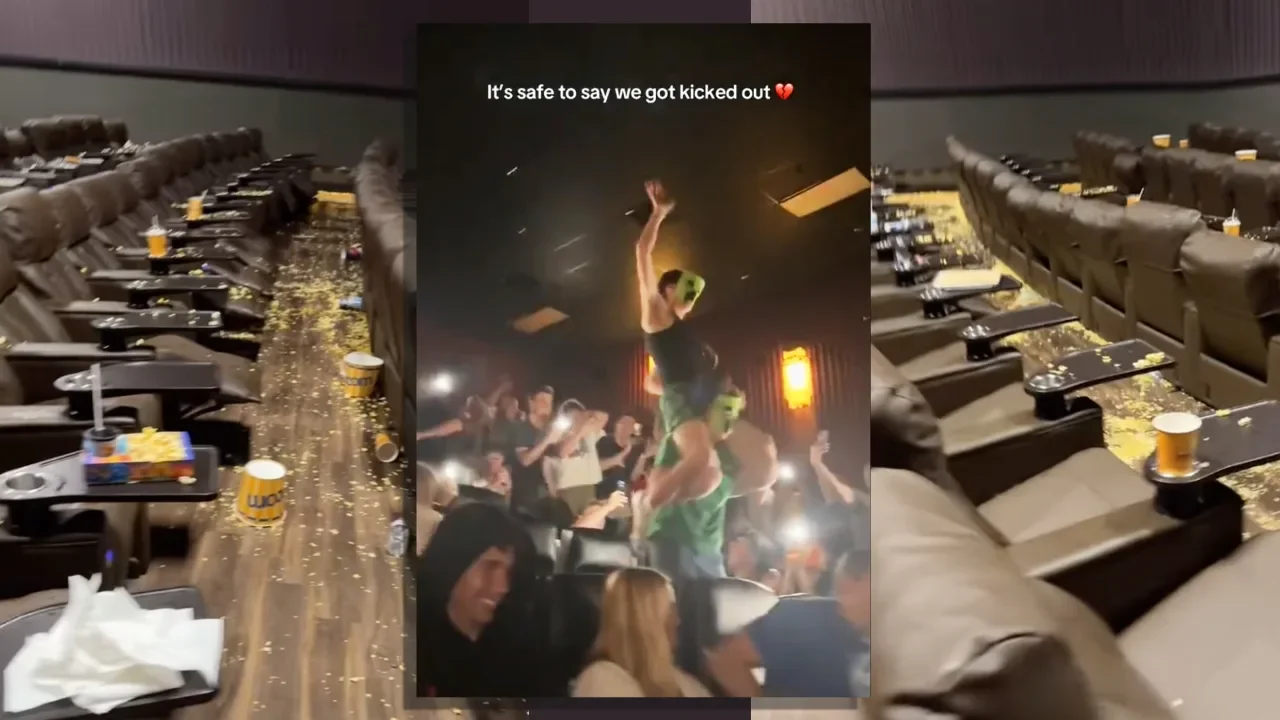
If you’re planning to see the new Minecraft movie and haven’t heard of the viral “chicken jockey” trend wreaking havoc in theaters across the country, read on. The trend gets its name from the block-shaped zombies in the video game Minecraft that occasionally ride chickens—thereby becoming chicken jockeys. In a scene from the new film A Minecraft Movie, based on the popular game, Jack Black’s character Steve at one point screams out, “Chicken jockey!” The phrase has since become a battle cry for teen-filled audiences to yell at the top of their lungs, flash phone lights, and launch popcorn and drinks at the screen. In one video, a moviegoer perched on another’s shoulders holds up a live chicken as chaos erupts around him. they brought a live chicken pic.twitter.com/t2FELBbEZt — 🕐HOURLY🕑 shitpost (@hourly_shitpost) April 9, 2025 According to Entertainment Weekly, some screenings have been so rowdy that police officers were called in to escort audience members out. Other theaters have issued disclaimers at the start of the film, warning against antisocial behavior. The trend is largely harmless fun—teenage boys being teenage boys—unless you’re the minimum-wage cinema staff tasked with cleaning up the mess. “Please don’t ruin our theater and the movie experience for other guests just for imaginary internet points. Real employees have to clean up this nonsense,” a Sandy Springs-based movie theater posted on Instagram last week. “Enjoy Minecraft, but not like this.” In some locations, unaccompanied minors and large groups of teen boys are now banned in an attempt to curb those chasing their five seconds of viral fame. The movie’s director, Jared Hess, has embraced the trend. “It’s been way too fun. People are sending me these really hilarious speeches that a lot of teenagers are giving right before the movie. It’s so hysterical, man. I’m staying up way too late,” Hess told Entertainment Weekly, adding that he finds it funny that “cops are getting called for popcorn.” Others, including Jack Black himself, aren’t so amused. During a surprise appearance at a weekend screening, Black warned: “For today’s presentation of A Minecraft Movie, please no throwing popped corn, and also no Lapis Lazuli, and also absolutely no Chicken Jockeys!” Whether you find it funny or not, the trend has undoubtedly contributed to the film’s impressive box office numbers. After just two weeks in theaters, A Minecraft Movie is already the highest-grossing Hollywood release of 2025, earning $80.6 million during its second weekend. It Ends With Us told fans to wear their florals, while Barbie turned movie theatres pink. Now, A Minecraft Movie fans can expect to leave the theater dressed head to toe in someone else’s soda and popcorn. View the full article
-
Tokyo first in line for negotiations that will be closely watched as test case of Washington’s trade war strategyView the full article
-
Unanimous decision by judges is a blow for transgender rights campaignersView the full article
-
Welcome to Pressing Questions, Fast Company’s workplace advice column. Every week, deputy editor Kathleen Davis, host of The New Way We Work podcast, will answer the biggest and most pressing workplace questions. Q: How can I get my boss to stop emailing me in the middle of the night? A: This dilemma is closely related to the question of how to say “no” at work without feeling guilty and how to push back if your workload is too much. All are part of setting boundaries, but in an uncertain job market, drawing firm lines between work and personal time can feel more fraught. That doesn’t mean that you shouldn’t set boundaries. In fact, the most valuable, creative, productive, and innovative employees are never the workaholics who respond to messages at all hours. Numerous studies have shown that an “always on” culture not only destroys employee morale but causes stress that negatively impacts job performance. While you can’t control your boss’s behavior or work style, you can set clear expectations for how you work. Here are a few ways to do it: Create office hours for yourself Most of us work in some kind of remote or hybrid capacity, which means we often work with people in different time zones. Even those in the same time zone may have different chronotypes, or times of the day you are most productive. For this reason, many people have found it useful to put a message on their email, Slack, and other communication platforms that says something like “My working hours from 9 a.m. EST to 5 p.m. EST. I will respond to your message within those hours.” You can include that as part of your status or signature or as an auto reply to messages received outside of those hours. If you tend to on a less traditional schedule, you can also signal to those you work with that while you might be emailing them at 9 p.m. or 6 a.m., you don’t expect them to respond. Including a signature line like: “My working hours may not be your working hours. Please do not feel obligated to reply outside of your normal work schedule,” can go a long way in showing that you have reasonable expectations. Both of these approaches can be a good start to let your boss know that you won’t be responding to off-hour messages without being confrontational. You can also just set your status to snooze notifications or better yet, put your devices away in a separate room. Have a direct conversation At least 60% of my workplace advice boils down to “have a direct conversation.” It may feel obvious, but most people avoid uncomfortable workplace discussions. However, once you get over the initial fear and awkwardness of bringing something up, a direct conversation is often the best way to address an issue. In this case, you can bring it up in during another regular check-in when you are already talking about projects you are working on. Try something like “By the way, I think our hours are a little misaligned. I’ve noticed some off-hours messages from you. I snooze my notifications on weekends and after 5 p.m. on weekdays, so that’s why I don’t respond right away.” You can also often advice if you think they’d be open to it: “Did you know you can schedule your messages to send during work hours?” If both of those approaches don’t work, you can just not respond to the messages and if your boss brings it up you can point to overtime laws in many areas that make it illegal for bosses to contact employees outside of work hours. Work often doesn’t fit neatly in a 9–5 box, and you should always first assume good intentions (and have empathy for your boss who might themselves be under a lot of pressure). But you should always protect your work-life balance, because that’s what makes you the best employee—not the your 11 p.m. email response time. Want more advice on setting boundaries at work? Here you go: 5 reasons why answering work emails and texts after hours is backfiring What sending after-hours emails does to your productivity How to get better at setting boundaries How can I push back if my workload is too much? View the full article

-
Not since the crash of 2008 has free trade held the moral and intellectual high groundView the full article
-
A range of policies, including tariffs, are leading foreign firms to question their dependence on US funding View the full article
-
Quiet is out and the “swicy” trend has calmed down. Now our taste buds are screaming for “crunch,” gritty textures, and noisy flavor experiences. Last year, noiseless squishy gummies and sweet-and-spicy, or “swicy” flavoring, were the breakout food innovations that took over the snack aisle. Remember the peelable mango gummy candy that went viral on TikTok? In 2025, food trend watchers, with a little help from TikTokers, have identified our top cravings. They include crispy foods, bold flavor mashups, and edible aquatic plants. The crunchier the better “‘Crunch’ is one of the trends that I’m excited about,” says Alyssa Vescio, Whole Foods Market’s senior vice president of center store merchandising, sourcing, and product development. “An area where we tend to see a lot of innovation is in the snacking category because people are always looking to discover the next ‘taste’ and ‘texture.’ I think crunch connects easily into the trends that we’ve seen in snacking. But now we’re seeing it come out of snacking and go into other spaces,” Vescio says. Whole Foods, which operates more than 500 stores across the U.S., identified crunch as the “texture of the moment” in its annual food trends report, which highlights the grocery chain’s top food predictions for the year. According to Vescio, food shoppers are searching for crunchiness across their meals, from breakfast to lunch to dinner. Food brands are responding by delivering plenty of innovative crispiness, such as crunchier versions of the chili crisp, crunchy dehydrated fruits and vegetables such as mushrooms and okra, crunchy chocolates, fermented nuts, roasted chickpeas, and mushroom chips. The crunch texture is also popping up in beverages and desserts, she says, such as crunchy cinnamon sugar crystal toppings on coffee beverages and the crème brûlée espresso martinis with a hard crunch sugar surface that you crack before you sip. Fast-food chain Subway planted its flag in crunchland, pairing up with Doritos to introduce a quirky limited-time concoction this month called the Doritos Footlong Nachos. Not to be left behind, Taco Bell announced last month that it is adding more crunch, cheese, and sauce to its toasted Cheddar Street Chalupas. It doesn’t end there. “You’re also seeing crunch in spices and seasonings. The number of people that I talk to who say, ‘Every time I make eggs, I put chili crunch on them’ or ‘Every time I have a dinner I put this textured seasoning on it,’ has increased tremendously,” Vescio says. A cultural signal Tastewise, an artificial intelligence-powered consumer research platform, continuously mines tremendous amounts of online data—millions of social media posts, online reviews, online recipes, and restaurant menus—globally to surface emerging food and beverage trends. Using its methodology, Tastewise analyzed the crunchy trend in the U.S. and found that over the past 12 months, social discussions involving the term crunchy have increased by about 13%. “This indicates not only a rising appetite for the sensory experience of crunch but also its resonance in how consumers talk about food online,” says Alon Chen, cofounder and CEO of Tastewise. According to Tastewise, three emergent consumer patterns are defining the crunchy trend. The company analyzes consumer needs at any given moment in time through how various dishes, ingredients, flavors, and textures are framed in menus, recipes, and social posts. It found that the number one reason fueling the need for “crunch,” based on significant growth in discussion on social media, was an association with comfort, such as comfort food. “This insight reframes crunch not just as energetic or exciting, but as comforting. This could be a new lens through which brands can market crispy products,” Chen says. Crunchy is increasingly associated with vegan offerings, showing that consumers are looking for textural satisfaction even in plant-based foods. And Peruvian cuisine has emerged as the fastest-growing culinary context for crunchy dishes with chulpi (or roasted) corn, crispy onions, and fried yucca being the top ingredients fueling the crunch texture in it, according to Tastewise. Among menu items, Tastewise’s analysis showed that 26% of restaurants in the U.S. currently offer items described as “crunchy” on their menus, which Chen says “represents a strong foothold in food service, often a bellwether for broader retail and CPG [consumer packaged goods] trends.” A new kind of crunch Crunch isn’t just for chips. Tastewise says the texture is being paired in several interesting ways—from indulgent to savory—with ingredients such as chocolate and pistachio (Hello Dubai chocolate viral TikTok craze!), cinnamon sugar, blood orange, chicken, and caramel apple. “I consider crunch a texture, not a flavor, and it gives you an experience,” says Sally Lyons Wyatt, global executive vice president and chief industry adviser for market research firm Circana. “Crunch has always been something that consumers have gravitated to when you think about chips and crackers. But there are some innovations that have gone across the texture, like freeze-drying in foods that gives a different texture in the mouth,” she says. Lyons Wyatt believes the big food trends for 2025 will be rooted in experimentation. “When I eat that food or drink that drink, what is that unexpected moment, through crunch, through freeze-dried, through flavors evolving while I eat?” she says. “I do think that crunch is going to be part of that.” The Whole Foods food trend report also highlighted the growing popularity of edible aquatic plants, such as seaweed and sea moss, for snacking or adding to food recipes. Duckweed, or water lentils, for example, is emerging as an alternative high-protein choice to other leafy greens, the report says. “I want to mention international snacking, too, because that’s an extension of crunch,” says Whole Foods’s Vescio. “It’s this idea of taking global flavors or fusion of foods and bringing it into the snacking category. One of my favorites is the Geem Korean seaweed chips. They have a thicker texture and with more substance than in a traditional seaweed snack.” Her other top pick is an artisanal snack brand out of Afghanistan called Ziba. “It’s a trail mix that has some really unique ingredients, like mulberries and apricot kernels. This fusion of flavors and discovery is really exciting and it also has a perfect crunchy texture,” Vescio says. View the full article

-
To promote its newest shoes, the Swiss athletic apparel brand On filmed a fictional movie trailer with Zendaya. Zone Dreamers stars the actress as an elf-eared astronaut who wears athleisure, trains in space with her flight crew, and—On hopes—sells some merchandise. It’s all an elaborate ad campaign for On’s new low-profile sneaker, Cloudzone, its one-piece Studio Knit Bodysuit, and other offerings from the company’s Spring/Summer 2025 Movement Lifestyle collection, which Zendaya wears throughout. (Consumers hoping to get their hands on the futuristic space suit Zendaya sports in one scene will be disappointed to learn that it’s not part of the collection. Celebrity stylist Law Roach, who styled the shoot, commissioned the white-and-clear suit from creative studio Chrishabana. “Some of my best work!!!” Roach wrote on Instagram.) It’s also a high-production way to sell workout apparel in a market that’s more competitive than ever. Global athleisure sales are expected to grow by more than $173 billion from 2024 to 2028, according to data from Technavio, a market research firm, and lifestyle, yoga, and women’s athleisure are expected to be major drivers. Challengers like On and Lululemon have cut into the market share of legacy brands like Nike since the pandemic, and today apparel companies are jockeying for many of the same consumers. On’s campaign suggests that having a celebrity spokesperson isn’t enough in a product category this competitive. The truth is that celebrity brand ambassadors are everywhere. Athleta and Lululemon have partnered with athletes like Simone Biles and DK Metcalf for years, Fila recently tapped model-influencer Hailey Bieber to promote a tennis-inspired athleisure line, and Nike just teamed up with Kim Kardashian’s Skims for a first-of-its-kind collaboration due out later this year. Skims is also a leader in advertising innovation, often engaging external collaborators who bring artistic vision to tentpole campaigns. On is leaning into that approach. Visual artist Nadia Lee Cohen, whose work has been featured in Interview magazine and the Dolce & Gabanna X Skims campaign, directed the spot. The resulting work allows On to “push the limits of creative storytelling,” as Alex Griffin, the company’s chief marketing officer, put it in a statement. With elevated production and an unconventional concept, Zone Dreamers sets itself apart from traditional fashion photo shoots—and that’s the point. The rise of hi-fi marketing campaigns, from the likes of Skims and now On—featuring magazine-style editorial execution and big-name creative talent both in front of and behind the camera—points to how well-suited narrative storytelling is for today’s biggest distribution channels: social media feeds. They’re attention-grabbing, create conversations, and can draw out launch-related buzz over multiple posts and days in a way that echoes box-office-style marketing for movies. Zendaya’s leading role in the new Zone Dreamers video shows there’s room to take high-production marketing concepts to the movies, outer space, and beyond. View the full article

-
A decade ago, streets in Paris were clogged with cars and exhaust. But now, if you ride a bike down a major boulevard at rush hour, you’ll be surrounded by a stream of other cyclists—and much cleaner air. “It’s an incredible feeling to ride your bike—it feels like Copenhagen, basically,” says Vincent Thorne, a postdoctoral researcher in sustainable mobility at the Paris School of Economics, who moved to the city a little over a year ago. Since Paris Mayor Anne Hidalgo took office in 2014, the city’s roads have radically transformed, speeding up a shift away from driving. More than 100 streets have been closed to cars. Tens of thousands of parking spots have disappeared. Hundreds of miles of bike lanes have been added. In response, car traffic keeps dropping. A new report shows what the changes mean for local air quality: pollution levels have dropped roughly by half compared to 2005. Airparif, an organization that tracks the city’s air quality, found that levels of particulate matter (PM 2.5) pollution—tiny pieces of soot, dust, or smoke that can lodge in the lungs—fell by 55% over the last 20 years. Nitrogen dioxide pollution, one of the main ingredients in smog, dropped by 50%. When Hidalgo began fighting to speed up the city’s transition to sustainable transportation, she was motivated both by the need to cut climate emissions and by Paris’s dismal air quality, which regularly exceeded EU health limits. The previous mayor, Bertrand Delanoë, had introduced Paris’s bike-sharing network, along with an electric car-sharing network, and closed traffic on the left bank of the Seine. Hidalgo pedestrianized the right bank, turning a busy highway into a pedestrian path and park. A new low-emission zone blocked the most polluting cars from the city center. The city started getting rid of parking spots, replacing some of them with trees and other green space. Speed limits were lowered. Streets next to schools were closed, making it easier and safer for students to walk. Hidalgo embraced the concept of the 15-minute city, the idea that you should live a short bike ride or walk away from work and errands. (To help, the city is helping redevelop some single-use buildings, turning offices into housing, shops, coworking spaces, preschools, and other uses under one roof.) The city’s network of bike lanes keeps expanding. The way that people get to work has quickly changed. Between 2022 and 2023, alone, the use of bike paths doubled during rush hour. On some roads, bikes started to outnumber cars. Some of the bike commuters might not have switched specifically from a car, says Thorne, the mobility researcher. Many Parisians already took public transportation, for example. But even if some people previously took the subway, if they’ve now switched to biking, that means that there’s now more room on the train. With the train less crowded, some drivers might now be more willing to take it instead of their cars. Thorne has been studying the impact of adding bike lanes on air pollution in New York City, where he found that bike infrastructure helped some people replace short taxi rides. The situation in Paris is likely different, he says. On many streets, entire lanes of traffic were converted to bike lanes. The shrinking road space for cars is convincing people to drive less overall; some of them may be walking or on public transportation rather than riding a bike. As traffic has subsided, the city is also just a better place to live. “Yesterday, I was having dinner [outside] at a restaurant on one of our main boulevards, and it was kind of enjoyable,” Thorne says. “It wasn’t something that was completely overwhelming with gas vehicles and traffic noise.” View the full article

-
Nearly a decade after Congress passed the Cybersecurity Information Sharing Act of 2015, the law is facing an uncertain future. Not to be confused with the Cybersecurity and Infrastructure Security Agency (which shares the same acronym), the law—often referred to as “CISA 2015” to avoid confusion—was designed to clear the way between private companies and the federal government to more openly share cyber threat data. Supporters argued it would bolster national cybersecurity by speeding up the flow of information about emerging attacks. In ways that most people don’t see, the law has helped financial firms, hospitals, and major retailers spot and respond to threats faster—thwarting ransomware, phishing scams, and other attacks before they spiral. But CISA 2015 came with a built-in expiration date—and that clock is now ticking. Key provisions of the law are scheduled to sunset at the end of September unless Congress acts to renew them. As lawmakers weigh the future of CISA 2015, they’ll have to navigate a tricky set of obstacles—namely skepticism from privacy advocates. Fast Company spoke with Matthew Eggers, vice president for cybersecurity policy at the U.S. Chamber of Commerce, about what’s at stake in the renewal process. The interview has been edited for length and clarity. Broadly speaking, how has the Cybersecurity Information Sharing Act shaped the government’s relationship with the private sector? The law, and the attitude that it’s built up over the years, has really provided government entities with a host of cyber threat data that they can’t get on their own. In a lot of ways, the information-sharing legislation has built a lot of connective tissue between the government and industry. What we’re trying to say to Congress is they need to pass the legislation by September 30, because not only is the law the cornerstone of U.S. cyber security, but it’s also to their benefit. They’ve got the public and private entities in their districts, in their state, that are under attack from cyber criminals and foreign nations—China, Russia, Iran, North Korea. Can you give an example of a tangible impact the law has made? I look at something like the food and ag sector. They’ve got a new Information Sharing and Analysis Center, and I think that is definitely an outgrowth of CISA 2015. There was a very good paper that David Turetsky, a professor at the University of Albany, put out in 2020 that showcases cyber success stories. It basically hits on a small fraction of the incidents that were probably mitigated or prevented. That’s one of the things about cyber information sharing: It’s hard to prove or show situations where you probably stop attacks at the outset or mitigate them. What is at stake, then, if the law lapses? It’s probably the case that information sharing would go down, and that’s in no one’s interest. There was information sharing happening before CISA 2015 passed, but what you’ve seen is an expansion of information-sharing bodies. And we don’t want to undercut that progress that’s been made. The other thing that’s at stake is trust. It takes a long time to build trust among individuals and organizations; at the end of day, it’s individuals within organizations who share information, and they have to know one another. Is a straight reauthorization sufficient? Some folks have pushed to modernize the law to address new cyberthreats like AI-driven attacks. It’s definitely part of the mix, and I can say that many leading organizations that are invested in this law are giving that a lot of thought. The law expires September 30; we definitely don’t want the law to lapse, but it only makes sense that we should be thinking about ways to improve the program, and I think that would likely entail new legislation. That can take time to consider. Do we have time to do that? I think that remains to be seen. Our priority is making sure that the program doesn’t lapse. Groups like the Electronic Frontier Foundation have argued that the law doesn’t have sufficient safeguards for data. What is your response to those concerns? I think those concerns were unfounded when the program was being considered. A Congressional Research Service report that just came out showed that industry and government have a strong record of safeguarding privacy and civil liberties under CISA 2015. And to my knowledge, there have not been any privacy incidents. Plus, sharing privacy information really doesn’t do an organization much good from a cyber standpoint. Typically, what you’re sharing are cyber threat indicators, which are things like domain names, log data, malware, date stamps, stuff like that. Senator Rand Paul was a major opponent of the original bill, and he’s now chairing the Senate’s Homeland Security & Governmental Affairs Committee. Have you engaged with him directly? We have been engaging his staff, and would be more than willing to engage him. I would say it’s just a matter of time before we try to meet with him. We’re always willing to talk. One thing we’re trying to do is more or less impress upon him the importance of the program to his state’s public and private entities. President The President hasn’t said anything on the law’s future, but there have been cuts to similar cyber initiatives. The people he is putting into positions at the Cybersecurity and Infrastructure Security Agency, and likely the Office of the National Cyber Director and the National Security Council—they get the importance of information sharing. Probably between now and September, when you may see a statement of administration policy, I can’t help but think that there would be a thumbs-up in favor of this program. Someone like Sean Plankey, who is expected to head up CISA, I know personally that he believes in the importance of this kind of effort. View the full article
-
If you follow much tech news, you’ve probably read about the Reddit theory of search. The Reddit theory is the idea that the best info you can get from Googling anything these days comes from Reddit—and the power of crowdsourced wisdom. You want to find the best portable battery pack? Or uncover the secret to getting Sharpie off your skin? See what scores of Redditors have settled on and save yourself the trouble of trying to dig up a definitive answer from any single source without all that extra perspective. It’s become such a popular tactic, in fact, that Google inked a major deal to feature Reddit info more prominently in its results. But you still never know exactly what you’re gonna get for any given search, and finding anything close to a consensus of opinions is often easier said than done. My friend, I’ve found a better way. Allow me to introduce you to the search-supplementing supertool you never knew you needed. Psst: If you love these types of tools as much as I do, check out my free Cool Tools newsletter from The Intelligence. You’ll be the first to find all sorts of simple tech treasures! Answers, answers, everywhere All right—so here it is: Few mere mortals who aren’t Reddit regulars realize it, but Reddit recently launched its own interactive search system for finding worthwhile info across the site. ➜ It’s called Reddit Answers. And I’ve legitimately been blown away by how useful and effective of a resource it can be. ⌚ You’ll only need about 20 seconds to see what it can do. ✅ Just open up the Reddit Answers website, then type any question or general search query into the box in the center of the screen. The key here is to think about this as a specific sort of supplement for your standard searching. Reddit probably isn’t the place to turn for objective facts, definitions, or any other such info. But it is an unmatched repository of genuine human opinion on a huge range of topics, and Reddit Answers helps you navigate that sea of sentiment better than any other tool I’ve tried. So, for instance, if you’re seeking out a new smart lock for your home, you might find it helpful to see a big-picture view of opinions from relevant Reddit discussions on the subject: Or if you’re planning a trip, you might benefit from browsing through stacks of firsthand opinions on different neighborhoods within a certain city: What makes Reddit Answers especially interesting for me is not only the info it gives you but also the way in which it structures it. Instead of just serving up scattered answers, it shows you smart summaries along with links to specific threads for more detailed reading. It’s like a gateway into a wild and often unapproachable jungle of popular perspectives—a starting point that makes it infinitely easier to explore that info without having to scroll through a zillion different pages and put it all together on your own. Reddit Answers works entirely on the web, in whatever browser you like. It’s free. And you don’t have to sign in or share any sort of personal info to use it. That being said, you will be limited to 10 queries a week if you don’t sign in (and a regular Reddit account is free and easy to create). Ready to rev up your productivity even further? Check out my free Cool Tools newsletter for an instant introduction to an incredible audio app that’ll tune up your days in some truly delightful ways—and another off-the-beaten-path gem in your inbox every Wednesday! View the full article

-
Environmental lawyers say two new White House directives—designed to greatly expand executive power to strike down federal energy and environmental regulations—are not likely to hold up in court and represent an attempt to move far beyond the established boundaries of presidential authority. “I do not think this even comes close to passing the test for legality,” said Andres Restrepo, a senior attorney in the Sierra Club’s Environmental Law Program, of the April 9 executive order, “Zero-Based Regulatory Budgeting to Unleash American Energy.” This executive order directs the Environmental Protection Agency, the Department of Energy, and other key federal agencies to “incorporate a sunset provision into their regulations governing energy production.” Once inserted, the provision would repeal that regulation within one year unless an extension is granted. Among those targeted are rules authorized under the Endangered Species Act. In a press release, the Center for American Progress, a public policy group, warned that enacting this order would “create chaos, uncertainty, and a nightmare of administrative procedures to justify almost every individual regulation relating to energy and environment.” “To just arbitrarily have a cutoff date for all regulations issued, regardless of what the statute says, and regardless of whether there’s an evidentiary basis for it—that is simply unlawful,” Restrepo said. “This is really just not how our laws work.” Restrepo said the order may be inspired by an Idaho law that includes a “sunsetting” provision stating that regulations expire automatically after one year unless they are extended by the state legislature. But the Administrative Procedure Act, which governs how federal agencies write and enforce regulations, contains no such language. Federal agencies create regulations based on laws passed by Congress. “It makes no sense. It is impossible to implement. It reflects a complete lack of understanding of how government works,” said Ari Peskoe, director of the Electricity Law Initiative at the Harvard Law School Environmental and Energy Law Program. Peskoe theorized that the administration is “enshrining a misguided quote” from billionaire The President donor Elon Musk about his support for applying a “zero-based budgeting” framework to the federal government. Zero-based budgeting is a financial strategy Musk employed at Twitter that forces an organization to constantly re-justify its expenses. When reached for comment about the legality of the order, a White House press representative pointed to an administration fact sheet for “Zero-Based Regulatory Budgeting.” That says the order “will unleash American energy innovation, which has been frozen in the 1970s. Regulations from the Carter Administration should not govern energy production today.” From the fracking boom to advances in solar and wind technology, the American energy landscape is very different today than it was 50 years ago. Existing regulations didn’t stop those innovations. A presidential memo also released Wednesday, “Directing the Repeal of Unlawful Regulations,” refers to an earlier executive order, “Ensuring Lawful Governance and Implementing the President’s ‘Department of Government Efficiency’ Deregulatory Initiative.” That order required agencies to “identify certain categories of unlawful and potentially unlawful regulations within 60 days and begin plans to repeal them.” The memo lists several recent Supreme Court decisions and directs agencies to prioritize repealing any regulation “in conflict” with those decisions. “You can’t do that. You can’t just repeal a regulation that’s on the books without holding a notice and public comment process,” Peskoe said. “If they want to do this, they’re going to inevitably lose in court.” Under the Administrative Procedure Act, agencies must follow a specific process in order to repeal a regulation. That process involves writing a proposal based on the administrative record for that regulation, soliciting public comment on the proposal, and then incorporating that feedback. The memo says agencies can use the “good cause” exception in the Administrative Procedure Act to “dispense with notice-and-comment rulemaking.” The “good cause” exception has been narrowly defined by the courts to apply only to emergency or urgent situations “where delay could result in serious harm,” Restrepo said. “What this presidential memorandum does is it just provides the administration with a nuke button to get rid of any rule it doesn’t like,” said Erik Schlenker-Goodrich, an attorney and the executive director at the Western Environmental Law Center. He is concerned about what could happen if legal battles over this memo and the related executive order reach the current Supreme Court, with its conservative majority that has upended precedent before. “The Supreme Court justices have proved very willing to use their own values to determine what the law is, rather than reading the plain language of a law and applying it to the facts of a particular situation,” Schlenker-Goodrich said. “There’s a risk, once it rises to the Supreme Court, that they will interpret what the federal government did as perfectly lawful. It will essentially expand the power of the federal government.” If the sunsetting provision were somehow to be upheld in court, “it would be a complete free-for-all on public health and the environment,” Restrepo said. “A huge amount of the work that has been spent to protect the public health and welfare will be erased.” He thinks that’s unlikely, but he does foresee the federal government wasting time and money to defend these directives “with little likelihood of succeeding.” Restrepo and Schlenker-Goodrich both questioned how the agencies would even be able to carry out the work outlined in these directives, given the drastic staffing cuts the new administration has made across the government. Schlenker-Goodrich said the order and memo were part of the administration’s broader efforts to dismantle the federal government and consolidate power away from federal agencies and into the hands of the president. “I’ve been practicing law for going on 26 years, and no administration in my lifetime has exercised authority in the abusive and wild way like the The President administration is doing now,” he said. The administration’s policies would take the United States back to a world before landmark environmental legislation like the Clean Air Act and Clean Water Act, a world of burning rivers, smog-filled cities, and polluted public lands, he said. “It is truly a five-alarm moment,” Schlenker-Goodrich said. —By Kiley Bense, Inside Climate News This article originally appeared on Inside Climate News, a nonprofit, non-partisan news organization that covers climate, energy and the environment. Sign up for its newsletter here. View the full article

-
Recently, after decades of paying high fees for the aging photo-sharing site Flickr, I finally moved all my images to Google Photos. It saved money and offered advanced features, like very accurate search results. But uploading years of pictures triggered the dreaded warning that I was approaching the storage limit of my Google account, which also holds Gmail, documents, spreadsheets, and other files. Cloud storage (be it Google Drive, iCloud, or Dropbox) is just one more in a growing list of subscriptions we all face, such as video and music streaming services, online magazines or newspapers, newsletters, Patreon sponsorship, and often just the right to keep using software. It’s especially frustrating to pay for photo storage when you know that most of those pictures and videos may be less than stellar. Google provides 15GB of free space per account. Beyond that, it charges $1.99/month for 100GB (my current plan), $2.99 for 200GB, then a pricey jump to 2 TB for $9.99. It’s hard to resist capturing pictures and videos, and easy to resist weeding them. But tidying up Google Photos can be a nice money saver. Google offers cleanup tools for Photos, Gmail, and Drive, though how they work—and how helpful they are—isn’t always obvious. Here’s how to make sense of them. Manage storage Start at Manage storage, accessible via the cloud icon labeled “Storage” at the bottom of Google Photos’ left sidebar. You’ll see your current usage, an estimate of when you’ll run out, and an offer to upgrade. If space is tight, look at the Review and Delete tools. Large photos and videos This section can offer considerable savings, especially if you have large videos you can part with. My biggest file was a six-and-a-half-minute, 1.2GB video from a trip to Egypt last year. While viewing each video to decide if it’s worth deleting, also click the “i” icon in the upper-right to see the resolution. This helps when deciding whether to use the Storage Saver feature, which we’ll discuss in a bit. Gmail and Google Drive Return to the Manage storage page, skip the next few sections and jump down to Gmail and Google Drive. All your Google apps share storage space, so clearing out Gmail and Drive makes more room for photos. (Roughly half of my 71GB glut came from Gmail, Drive, and other apps.) Click Review items, then scroll to Clean up by service. Under Gmail, you can delete emails with large attachments. This is where you’ll likely save the most space. Clearing out spam and trash helps, too. Then choose Google Drive and click the List view icon in the top-right to see file sizes. I found huge video and audio files I hadn’t needed for years. Deleting them reduced my Drive usage from 21.2GB to just 760MB. Recover storage Back on the Manage storage page, check out Recover storage: Convert existing photos and videos to Storage saver. This powerful tool lowers the resolution of large videos and photos to save space. Just note: It’s irreversible, and applies to your whole account—with no way to selectively shrink specific files. Storage saver converts videos over 1920 x 1080 down to that resolution. It also slightly reduces quality, even for videos shot at or below 1080p. This helps if you’ve shot a lot in 4K ultra HD. In my test, a 1-minute 4K, 60fps video shrank from 798MB to 30MB—a 96% reduction. I noticed just a slight softening in a reduced iPhone 13 video of a room with ornate furniture and paintings. I viewed it at full screen on my 2000 Macbook Air with Retina Display at the top resolution of 1680 x 1050. (The default is 1440 by 900, and a clip in a web browser would display even smaller.) Storage saver also shrinks photos above 16MP down to that size (and it compresses larger formats, such as TIFF, to JPEG). I used Storage saver to reduce a 40 megapixel, 11MB JPEG photo down to 16MP and 2.3MB. I couldn’t spot differences on screen—even when zooming in. Google says that 16MP photos print well up to 24 x 16 inches. You can toggle Storage saver on or off for future uploads. On the web, click the gear icon in the upper right (next to your profile pic) to open Backup Quality. In the mobile app (in Android or iOS), tap your profile picture, then Backup, then the gear icon, and finally Backup quality. Don’t forget to switch back to Original quality for uploads you want at full resolution. Screenshots Skip the Screenshots section and instead click Documents in the left sidebar. It shows screenshots plus other categories of nontypical photos with potentially short shelf lives, such as event tickets and receipts. Delete them individually, or select a batch by clicking the first, holding Shift, and clicking the last. To automate cleanup, toggle on Archive after 30 days, which moves items to the Archive folder, where you can delete them in bulk anytime. Blurry photos This category may not help much. Google’s “blurry” threshold is pretty low. If you delete all of them, you might lose some cherished soft-focus memories. And since blurry photos probably don’t take much space, combing through them might not be worth the time. After decades of shooting, I had only about 300 “blurry” photos taking up 373MB. Other apps Here’s another section you can probably skip: media taken with or shared through apps like Instagram or WhatsApp. You probably care more about what’s in the pictures or videos than the source. Also, this section doesn’t show file sizes, making it hard to know what to delete. Unsupported videos These are videos that Google Photos can’t play for some reason. They may be in an oddball file format; although Google supports such a large list of video (and photo) formats, that it’s unlikely the upload from your phone or camera won’t be covered. They may also be sub-one-second clips—possibly from accidental button taps: I found several in my account. Unsupported videos may be viewable after downloading. Both macOS and Windows (10 and later) have an app called Photos that can play videos, as well as extract a still image if you’d like to convert that tiny clip to a picture. Empty the Trash Deleted files go to the Trash folder, where they’ll hang around for 60 days unless you clear them manually. To remove them permanently, click Trash in the left sidebar, then Empty trash in the upper right. Limiting Phone Uploads Android phones have a space-saving feature for new photos and videos you shoot. (It doesn’t affect what’s already been uploaded.) In the Photos app, tap your profile pic, go to Photos settings then Backup then Back up device folders, and toggle on or off image types to upload, such as screenshots or WhatsApp shares. iPhone users beware: The Free Up Space option in the Google Photos app doesn’t reduce cloud storage. It simply deletes media from your phone that’s already been uploaded (automatically) to Google Photos. If you also have iCloud Photos enabled, Free Up Space will remove files not only from your phone but also from your iCloud account. View the full article

-
The Chevrolet Corvette has been the icon of U.S. industrial power since 1953. It also symbolizes the great ideal of America—a dream of individual freedom that was ultimately embodied in big roaring cars and endless highways. This gasoline-fueled dream might lose its gasoline smell forever, as General Motors experiments with a fully electric Corvette. GM created this car in its new design studio in Royal Leamington Spa, about 20 miles from Birmingham in the U.K. And, although the company insists that it is not a confirmed production model (concept cars are never production models), it marks the beginning of a path already taken by rivals like the Ford Mustang and the Dodge Charger. “This concept is purely a design exercise involving GM’s existing design studios in Los Angeles, Detroit, and the U.K.,” Chad Lyons, head of Chevrolet PR, tells me via email. The concept “has no production intent,” and is not a signal of future Corvette design language but rather a “futuristic and exploratory design exercise only, intended to push the envelope of design and technology.” In my mind, an all-electric Corvette is all but inevitable. As GM’s president Mark Reuss stated back in 2022, the electrification of this American icon is “a priority.” Reuss didn’t say whether it will be a variant of the gasoline model or a completely new design standing on its own, but it will happen. And this design is the first spark. Symbol of America’s golden age Ford and Dodge already made the transition to fully electric models in 2019 and 2024 respectively. But, while the Mustang and the Charger are icons in their own right, none of them carry the power of the Corvette as a symbol of America’s industrial might. You can easily argue that the Corvette reached peak car status in pop culture like no other car ever created in the U.S. If America was ever “great,” the Corvette represented that greatness like no other. Like most American celebrated inventions, the Corvette was born as an experiment. The genesis of the Chevrolet Corvette lay in the vision of Harley Earl, the head of GM’s Styling Section, who aimed to create an American sports car to rival the growing popularity of the glamorous European models by Ferrari, Jaguar, and Masserati, which appeared after World War II. Dubbed Project Opel, the initial concept debuted at the 1953 GM Motorama fair, showcasing a revolutionary fiberglass body. The material—which was completely new at the time—offered lightness and a unique aesthetic compared to the typical steel bodies. The design was influenced by U.S. fighter jets and the sleek lines of European sports cars like the Jaguar XK120. While the early six-cylinder models didn’t immediately match the performance of their European counterparts, the Corvette’s striking design and “dream car” appeal quickly captured the public’s imagination. It was not until 1955, with the arrival of its rumbling V8 engine, that the Corvette found its literal and figurative voice. Then in 1963, it cemented its place as the most desired car in America with the C2 Stingray. This marked a pivotal moment in its design evolution. While the overall direction was under legendary American car designer Bill Mitchell, the stunning and instantly recognizable design comes from designer Larry Shinoda, a first-generation American whose parents immigrated from Japan. He translated Mitchell’s Stingray racer concept into a new era for the Corvette. Wiki Commons Working within Mitchell’s Studio X special projects group, Shinoda was instrumental in shaping the sleek new appearance of the C2. Its rear split-window coupe, though only produced for a single year, became an instant icon on its own right, symbolizing the bold and innovative spirit of American design during the time NASA took humans to the moon. Compared to other cars of the era, the Stingray offered a unique blend of American muscle and sophisticated futuristic styling that set it apart from both European sports cars and traditional American automobiles. The Corvette became synonymous with the American automotive industry. It represented American industrial prowess, showcasing the country’s ability to produce high-performance machines that could compete on a global stage. It was at this time when the car turned into a towering cultural icon of the Space Age era. It wasn’t only about its sci-fi looks, but also about who was driving it. Starting with Alan Shepard, the first American in space, many Mercury 7 astronauts and those who followed were offered the opportunity to lease Corvettes for a nominal fee. Each crew of the Apollo missions—including Armstrong, Aldrin, and Collins—had matching Corvettes, which they used to get around Houston and on the roads near Cape Canaveral. This association forged an indelible link between the Corvette and the image of American innovation, speed, and pushing the boundaries of what was possible. The Corvette became a symbol of the nation’s technological ambition, mirroring the achievements of the space program. The C3 generation—built from 1968 to 1982—became an even stronger visual icon. Often referred to as the “Shark” due to its curvy design, heavily influenced by the Mako Shark II concept car created by Shinoda under Mitchell’s direction, it continued the Corvette’s dramatic styling. It had a long, low profile, a curvy Coca-Cola bottle shape, bulging fenders, and pop-up headlights. Reinventing an icon All this to say that it is a strange feeling to see a new electric Corvette prototype coming from GM’s U.K. Advanced Design Studio. Even more so when you consider how much closer it was to Mitchell and Shinoda’s sensibilities than the current Corvette. The team took the 1963 Stingray’s split rear window and made it the central element of the design, turning it around and splitting the windshield in a concept they call Apex Vision. The singular vertical central spine is not just for looks; it is a structural element, according to Julian Thomson, who leads the design studio. The British prototype is actually a “hypercar” with 22-inch front and 23-inch rear tires, a car that can run on the road and on the racing track. At 15.1 feet long, 6.9 feet wide, and a height of 3.4 feet—lower, wider, and longer than the current C8—the design has two distinct parts. The upper section presents classic Corvette elements in a futuristic style, like Apex Vision, while the lower half focuses on functional technical design. That includes embedded EV battery technology and aerodynamic elements designed to channel air efficiently without traditional wings or spoilers. Instead, the prototype uses active ducts that redirect airflow depending on the driving mode. On a regular road, they optimize range by channeling air under the chassis; on a race track, they deploy aerodynamic surfaces that increase grip. The bodywork is made using additive manufacturing, its creators say, also known as 3D printing, to reduce weight and assemblies. The concept also incorporates aviation-inspired elements in its sculptural forms and functional aspects, along with full wrap-around side glass and powered gull wing doors. All of that makes the electric Corvette a very attractive design. It feels ready to run the 24 hours of LeMans. There have been positive reactions in the press, but met with mixed reactions from fans. Whether purists will accept a Corvette without the roar of a V8 engine is anyone’s guess. The rise of the all-electric muscle car Its direct competitors have had mixed results in the market. Sales of the Dodge Charger Daytona EV have not been good, with only 2,115 units sold in the first quarter of 2025. On the other hand, the Ford Mustang Mach-e has had a great start of the year, becoming one of the best selling EVs in the first quarter of 2025, reaching 22,550 units (an 11% increase over the previous quarter). GM already markets the Corvette E-Ray, a hybrid variant, which only sold 1,447 units in its first year. It’s not a promising sign. But then again, the E-Ray is not a very attractive car. It feels blah. Michael Simcoe, senior VP of global design at GM, says that the U.K.-designed concept is part of a global initiative where multiple studios were tasked with developing hypercar concepts that pay homage to Corvette’s heritage while showcasing unique creative interpretations. The concepts will appear through 2025, perhaps a strategy to whet the fans for an all-electric model. But it’s likely that, at one point in the very near future, the company is getting ready to drop that roaring combustion engine. While the current Corvette doesn’t have the same design magnetism and pop culture symbolism as the ones from the ’60s and ’70s, it still carries the torch of a time long gone, a heavy heritage that nobody can ignore. The moment the gas roaring turns into a silent buzz of electricity, it will truly be the end of an era for a whole industry and the entire country. That’s not necessarily a bad thing. In fact, perhaps everyone in the U.S. should be hoping that its most iconic car can successfully turn into the icon of a new era for the country. Looking at the electric supercar tsunami coming from China, I’m not so hopeful for its future. But this concept car gives me some hope that they may pull it off. View the full article

-
In an emergency directive issued late last week, U.S. Department of Agriculture Secretary Brooke Rollins announced her department’s plan to expand logging and timber production by 25% and, in the process, dismantle the half-century-old environmental review system that has blocked the federal government from finalizing major decisions concerning national forest lands without public insight. Under Rollins’s direction and following an earlier executive order signed by President Donald The President, the U.S. Forest Service would carry out the plan that designates 67 million acres of national forest lands as high or very high wildfire risk, classifies another 79 million acres as being in a state of declining forest health, and labels 34 million acres as at risk of wildfire, insects, and disease. All told, the declaration encompasses some 59% of Forest Service lands. Rollins made no mention of the role climate change plays in escalating wildfire risk or intensity, or how warming contributes to spreading plant diseases and expanding invasive species ranges. Climate change, it seems, has also been overlooked in the development of the The President administration’s proposed solution—to cut forests down. “Healthy forests require work, and right now we’re facing a national forest emergency. We have an abundance of timber at high risk of wildfires in our national forests,” said Rollins in a press release. “I am proud to follow the bold leadership of President The President by empowering forest managers to reduce constraints and minimize the risks of fire, insects, and disease so that we can strengthen the American timber industry and further enrich our forests with the resources they need to thrive.” While it may seem intuitive that cutting down high-risk trees will lead to less organic material that could incinerate, environmentalists say the administration’s plans to increase timber outputs, simplify permitting, and do away with certain environmental review processes are likely to only escalate wildfire risk and contribute more to climate change. Chopping down vast tracts of trees releases tremendous amounts of greenhouse gases into the atmosphere, exacerbating warming, which supercharges wildfire risk and causes blazes to burn faster and hotter. Though the climate science of timber management is complex, with techniques like prescribed burns considered widely effective in mitigating blaze-prone areas, the administration’s aim to rapidly ramp up deregulated logging under the premise of lessening wildfire risk is poised to backfire, not least because of the carbon costs of cutting down forests. A map accompanying the memo from the Department of Agriculture, or USDA, indicates the stretches of forest that the agency has identified under the emergency designation. California, Colorado, Idaho, and Arizona appear to have the largest swaths of forest lands affected. Parts of the South, around the Great Lakes, and New England are also included. The USDA has not specified how many acres will be impacted per state. The agency’s emergency order and push to expand logging to mitigate wildfire risk, ineffective as it can be if done haphazardly, is not a new strategy, said Lisa Dale, a lecturer at Columbia University’s Climate School who has researched wildfire policy for decades. Similar declarations have been passed in multiple former administrations as a way to shortcut the time-consuming and onerous review processes under the 1970 National Environmental Policy Act, or NEPA. What is new about this particular directive, however, is the USDA’s explicit intention to “remove” NEPA processes. The President imposed multiple limitations on the rule in his first term, most of which the Biden administration later revoked. In his second term, the president has sought to unravel how the sweeping environmental legislation is implemented, decentralizing how it has been governed and leaving it up to individual agencies to develop their own guidelines. Dale said this rings “an alarm bell” as the proposed elimination of NEPA processes at the USDA would mean that, in theory, a logging company could come into a forest and extract timber without having to first evaluate the environmental impacts of its actions—like when timber production overtakes endangered species habitats. “I’m a little skeptical about the premise of this memo,” said Dale, who has been a longtime proponent for streamlining NEPA. “The idea that we’re going to increase timber production by 25% and that that will be the equivalent of reducing wildfire risk? That’s the disconnect.” As Dale noted, most of the really valuable timber is located only in a couple of states, in areas that are very difficult and expensive to access. Moreover, she said, “none of those types of timber sales have much of an impact at all on wildfire risk.” The USDA declined to comment for the story, but a spokesperson sent Grist a public letter issued by Chris French, the acting associate chief of the Forest Service. In the letter, French first directs all officers to “use innovative and efficient approaches” to meet the “minimum” requirements of NEPA, and later notes that the agency will soon release direction for “using emergency NEPA” to “streamline and simplify our permitting process.” The agency’s emergency declaration comes even as it continues to cull federal funding for food and farm programs, and has attempted to substantially shrink the very workforce that manages forest health and wildfire management. Anna Medema, Sierra Club’s associate director of legislative and administrative advocacy for forests and public lands, said that the move will benefit industrial logging operations and create a negative climate feedback loop. She called the decision “a boon for the logging industry and a disaster for our national forests.” Other advocacy organizations, like the nonprofit Center for Biological Diversity, have vowed to “use every legal tool at our disposal to halt the The President administration’s implementation of this order.” Jack Algiere, director of agroecology at Stone Barns Center for Food and Agriculture, a nonprofit farm and research center in New York, is holding out hope that agroforestry solutions will be included in how the Forest Service carries out the new emergency order. “The thing with agriculture is that it’s working with living systems. It doesn’t matter if you’re in a forest or a vegetable field,” said Algiere, who flagged there is no mention of a long-term implementation in the memo. “Not all of these places are abandoned forests. Many of them already have management plans, and maybe this is going to disrupt that.” Algiere also took note of how the language in the memorandum includes what he considers a lot of the “right words”—such as mentions of the Forest Service working toward land “stewardship” together with federally recognized tribes. And yet he can’t help but think about how, at the same time, the USDA is freezing and cutting funding for food programs and scrubbing diversity, equity, and climate tenets from applications. “This could have been written in a lot of different ways,” he said. “Not unlike the rest of the USDA, there seems to be a little bit of both sides getting played out.” —By Ayurella Horn-Muller, Grist This article was originally published by Grist. Grist is a nonprofit, independent media organization dedicated to telling stories of climate solutions and a just future. Learn more at Grist.org. View the full article

-
As the The President administration has set its sights on dismantling diversity, equity, and inclusion efforts in the workplace, the prevailing narrative has been that private-sector companies are retreating from DEI programs. That’s true to some extent: Major employers have made notable changes to their DEI efforts, altering language in public filings and slashing or pausing career development programs for underrepresented groups—and corporate leaders have said they are losing sleep over the threat of DEI-related litigation. Still, it seems that many companies are continuing to invest in diversity programs, according to a benchmarking survey that culture and inclusion platform Paradigm released today. On the whole, federal contractors and large companies—those with more than 10,000 employees—appear to be the most likely to make significant changes to their DEI work in response to the heightened scrutiny by the The President administration and risk of legal action. (The survey polled more than 400 employers of different sizes across a range of industries, including some of the largest U.S. companies by revenue.) What DEI policies are changing It’s true that employers are moving away from certain types of DEI initiatives. Many companies are, in fact, eliminating representation goals—something that leading tech employers like Meta and Google have already done. Paradigm found that 38% of companies surveyed had either stopped using representation goals or are planning to do so. The vast majority of employers who still use representation goals—92%—said they plan to stop sharing those goals publicly, while 77% said they would not even disclose them internally. As the terminology of DEI has grown more polarizing, 39% of companies have also changed the language they use for their programs. What DEI policies are staying the same Even as employers pull back on some of these efforts, however, the budget for DEI work has not radically shifted at many companies, per Paradigm’s findings: Only 19% of employers said they are decreasing funding for DEI efforts. More than half claimed they are not making any changes, and 23% said they actually plan to increase funding. Given that the pushback to DEI has been brewing since the Supreme Court’s 2023 ruling on affirmative action, it’s possible some of these companies had already made changes to how they allocated funding for diversity efforts—or cut back on them altogether. As Fast Company has previously reported, plenty of companies were already reevaluating their financial commitments even prior to that ruling, and in some cases trimmed headcount for teams that were dedicated to DEI-related work. Joelle Emerson, cofounder and CEO of Paradigm, also posits that some companies may have just reallocated funding or outsourced certain aspects of their DEI work to organizations like hers. “We’ve worked with Fortune 500 companies that have a team of five learning designers building trainings from scratch on inclusive leadership or inclusive hiring,” she says. “We—and I’m sure other [platforms]—have really great content that doesn’t need to be reinvented for every single organization.” The state of external rankings Over the past year, many companies have made headlines for pulling out of the Human Rights Campaign’s Corporate Equality Index, an annual survey that measures workplace inclusion for LGBTQ+ employees and is often touted by companies that are looking to attract more diverse employees. But the Paradigm report indicates that even amid public pressure, many companies have not changed their stance on those rankings—at least not yet. Only 18% of respondents said they had already paused their participation in external rankings that measure inclusion or planned to do so. Emerson points out that many of the companies who, for example, pulled out of the Corporate Equality Index, were being pressured to do so by right-wing activists. But the companies that seem to be staying the course may not be talking about it openly or getting media attention. “If you’re a company that’s not evolving away from these things, there would be no reason anyone would hear about it,” she says. “By and large, you’re not going to be announcing that.” Reducing legal risk Nearly all the companies surveyed by Paradigm—at least 90%—say they have already embedded DEI practices into their talent strategy, which includes continuing to source diverse talent. Most of them are also continuing to collect demographic data on employees and invest in inclusion trainings. Employee resource groups and DEI-related benefits like parental leave and trans healthcare coverage have also remained largely unchanged (though some companies are opening affinity groups up to all employees to mitigate legal risk). Emerson adds that the Equal Employment Opportunity Commission’s recent guidance on DEI has actually helped clarify what could constitute “unlawful discrimination” for some employers, which had sparked widespread confusion when The President first introduced executive orders targeting DEI. “I don’t agree with a lot of the guidance—I think a lot of the things that they’re saying are essentially illegal DEI are, in fact, not,” she says. “But the guidance has given the companies we work with more confidence to continue with the things they’re doing.” View the full article

-
Industry’s leading equipment supplier still expects growth this year but warns of ‘dynamic’ environmentView the full article
-
Accounting regulator’s probe will focus on audits for four financial years to 2018View the full article
-
Figure comes as Bank of England awaits economic impact of US tariffsView the full article
-
Key to alliance’s anti-missile shield, Rota is among 38 bases across Europe at risk of a withdrawal by WashingtonView the full article
-
Buyout executives say economic uncertainty unleashed by US tariffs has made pricing assets challengingView the full article
-
African firms say they lost over a third of their business as global executives forced them to drop risky clientsView the full article
-
My arrest in the government’s attempt to crush dissent shows how important the stability of my country isView the full article